
Developers
3

Use Analyse Mode
Analyse Mode allows you to clearly visualise properties on each subtask. Choose what properties you want to see and easily gather information through colour-coded subtasks.
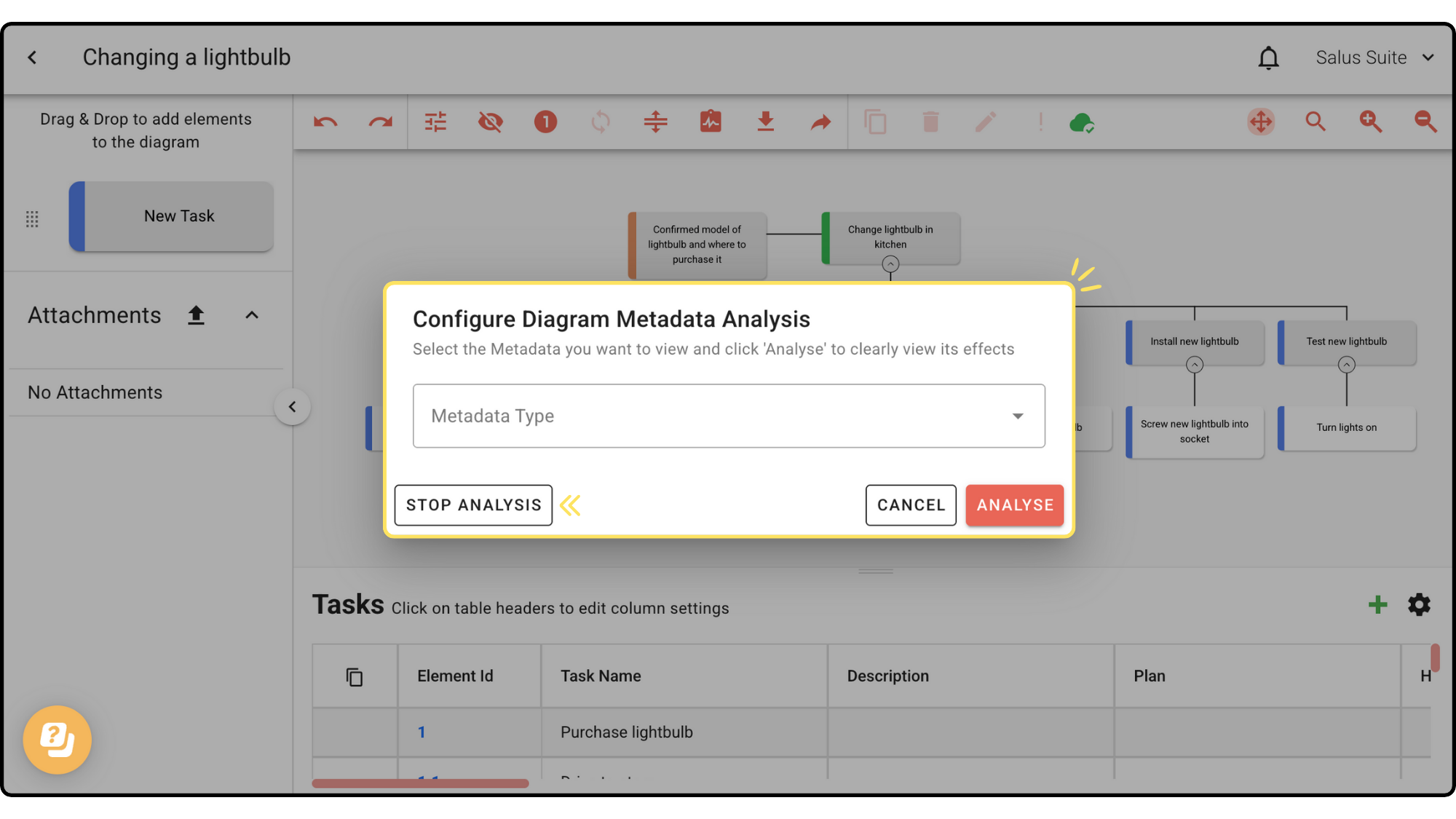
Step 1: In the Diagram Editor, head to the toolbar panel and click on the ANALYSE button. 
Step 2: Select the Metadata Type from the drop-down list that you would like to analyse and click ANALYSE.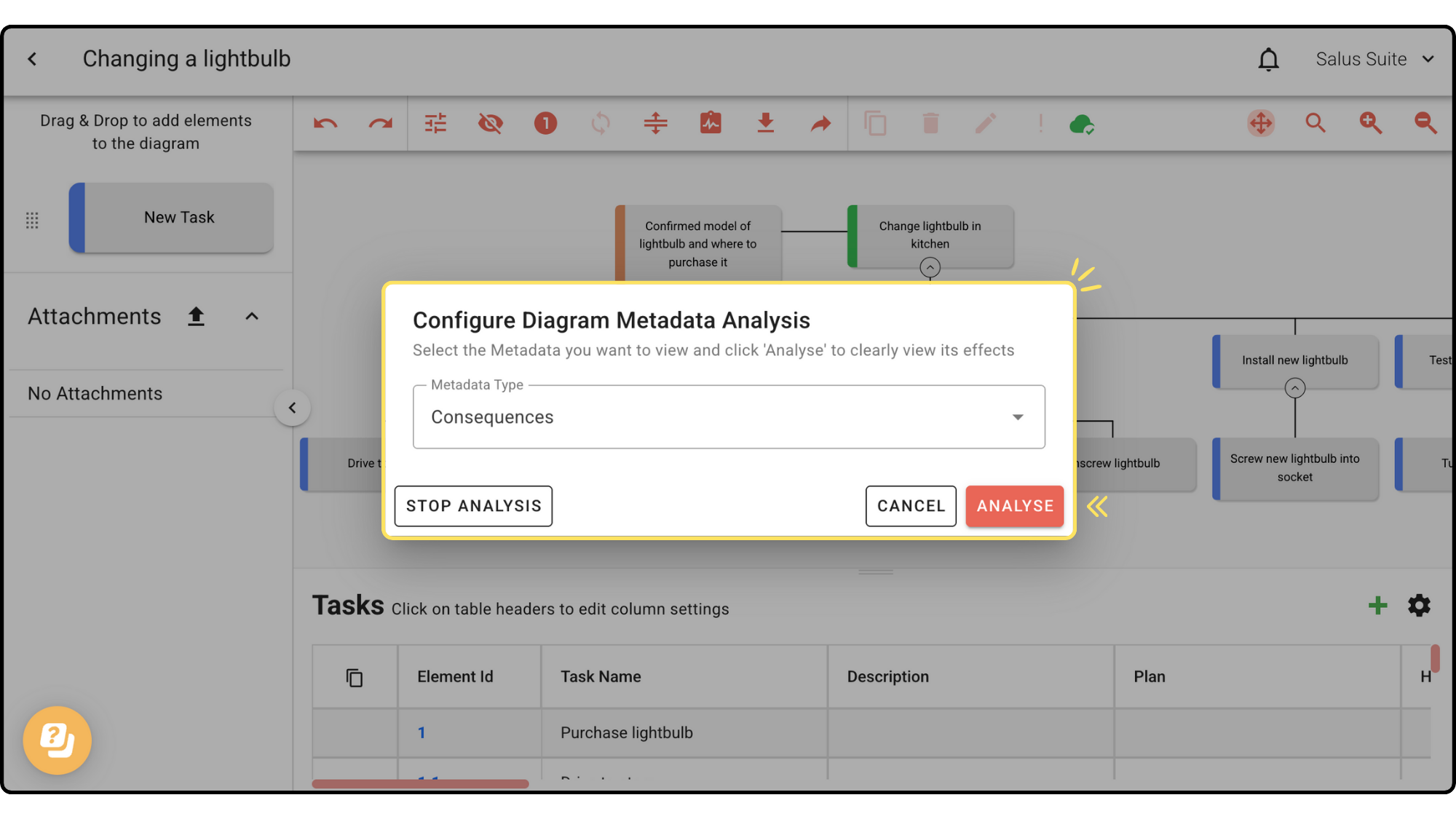 Safe Task tip: ‘metadata’ is another word for task properties/table headers.
Your diagram will look like this in Analysis Mode: 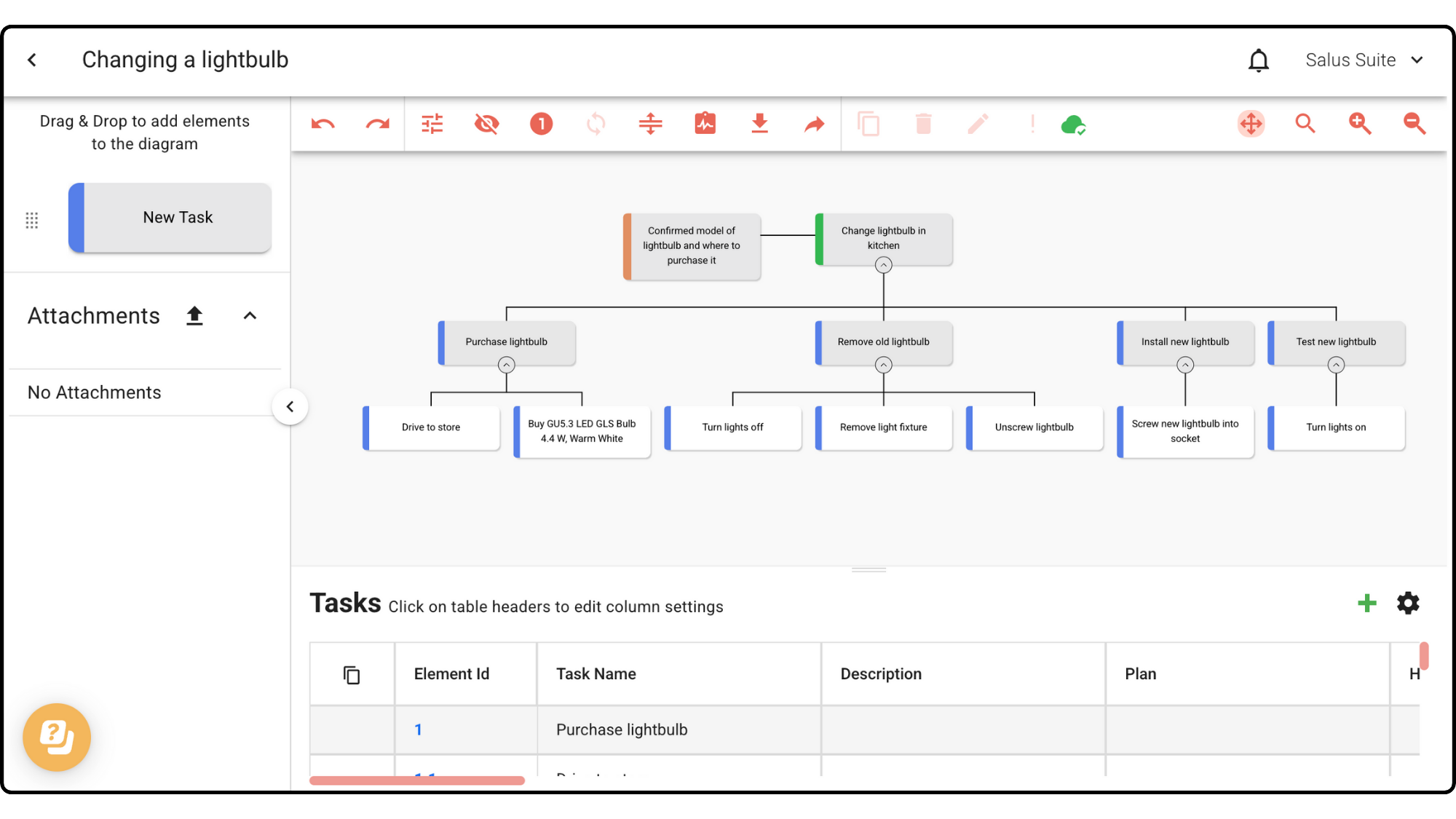
Step 3: To stop analysis mode, head back to the toolbar, click on the ANALYSE button and then click STOP ANALYSIS.