
Developers

Share a diagram
Safe Task diagrams are wonderful means of making tasks more understandable. It is therefore essential that the diagrams you create can be easily shared across your organisation. Safe Task makes sharing HTAs very straightforward. A newly created diagram can be shared in three ways:
- As a high-quality diagram that can be downloaded as a PNG or PDF
- As a live link that can be accessed via any web browser
- By inviting users into Safe Task to view and edit the diagram created
As a high-quality diagram
Step 1: Click on Download & Export, then select Download Image. 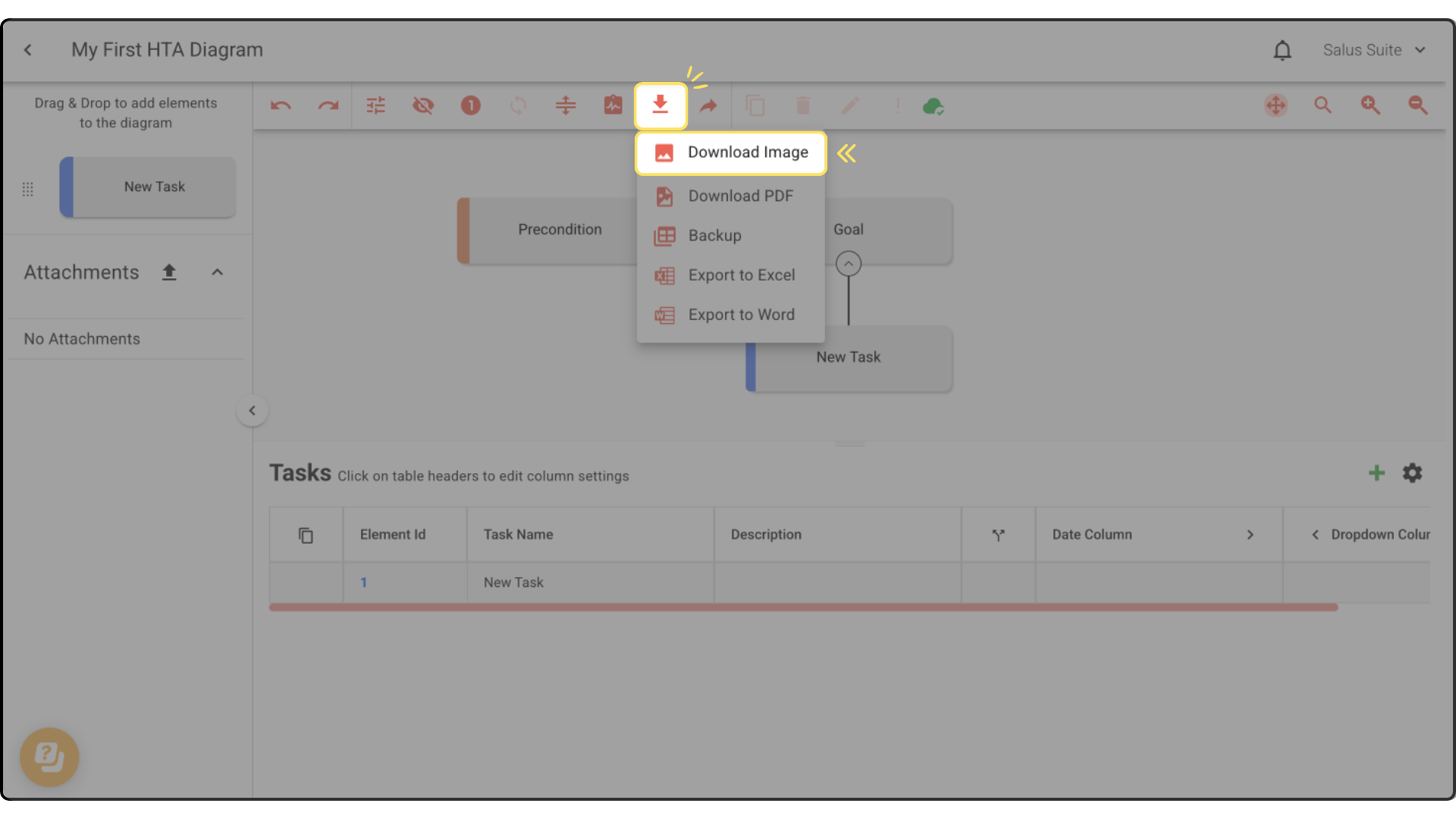 Step 2: To download a PDF version, click on Download & Export, then select Download PDF.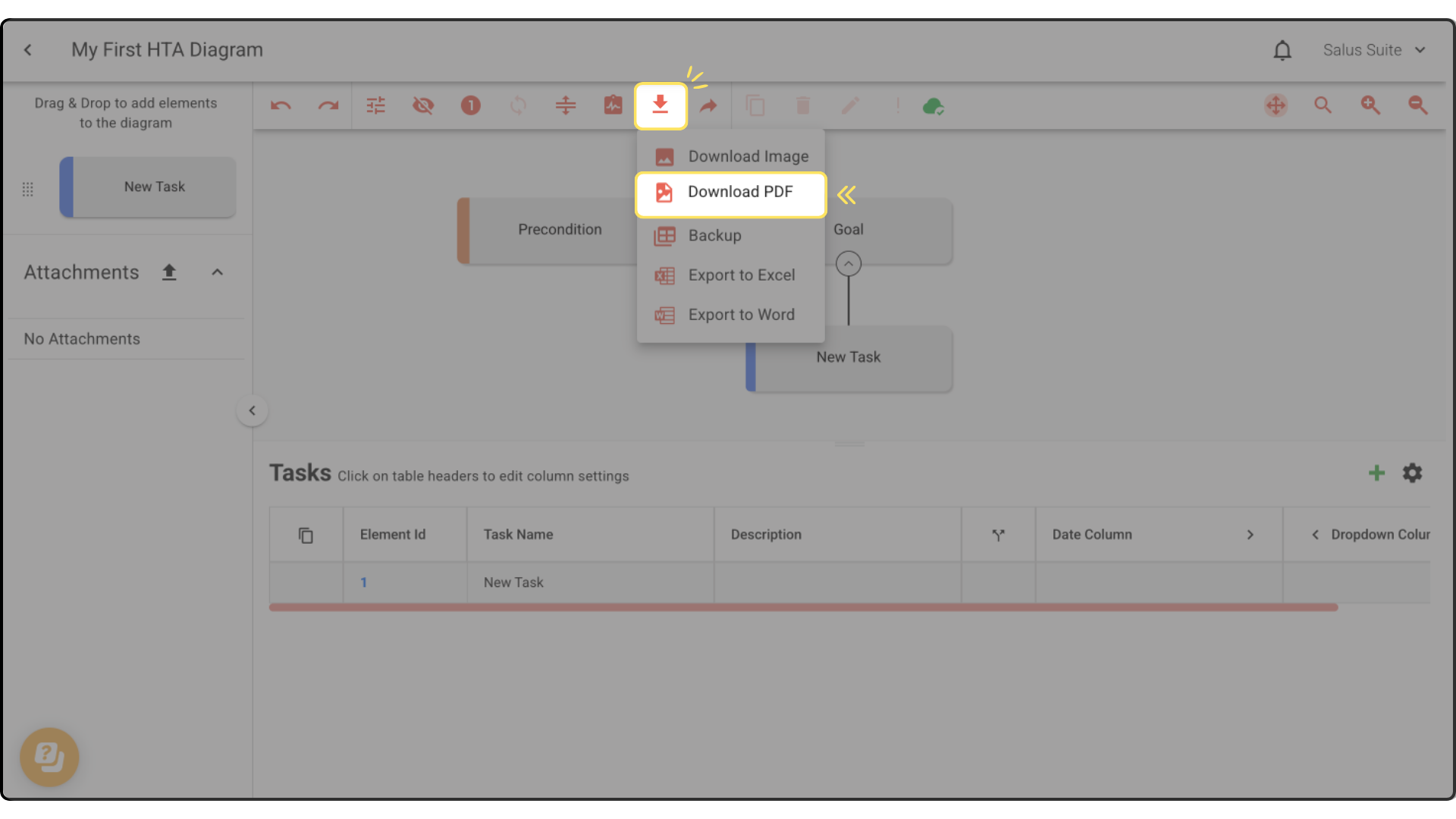
As a live link
Step 1: Click on the Share button found in the toolbar of the Diagram Editor.
Step 2: Toggle the Share button on. 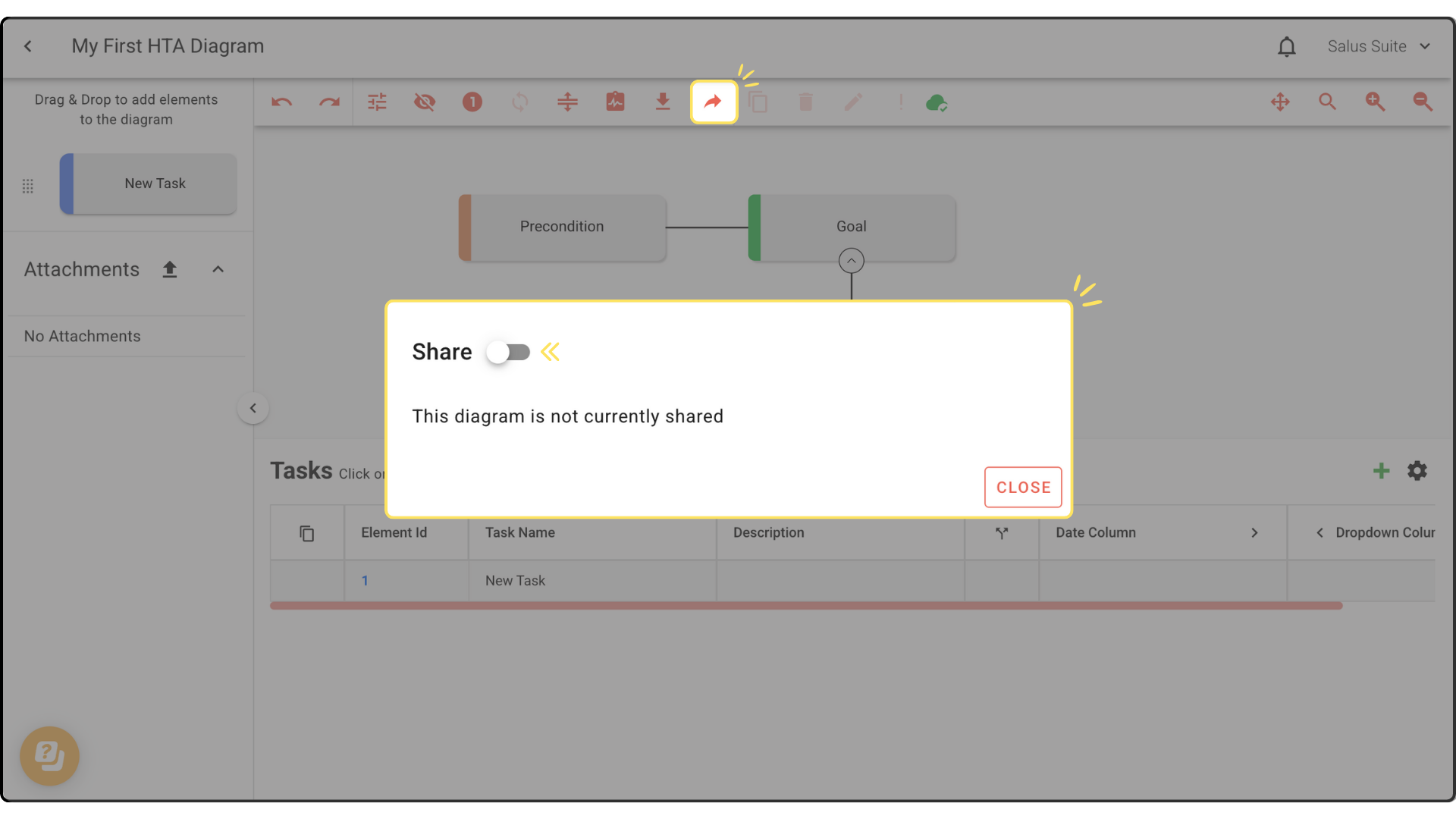
Step 3: Click on Update Shared Image, then click the Copy Link icon. 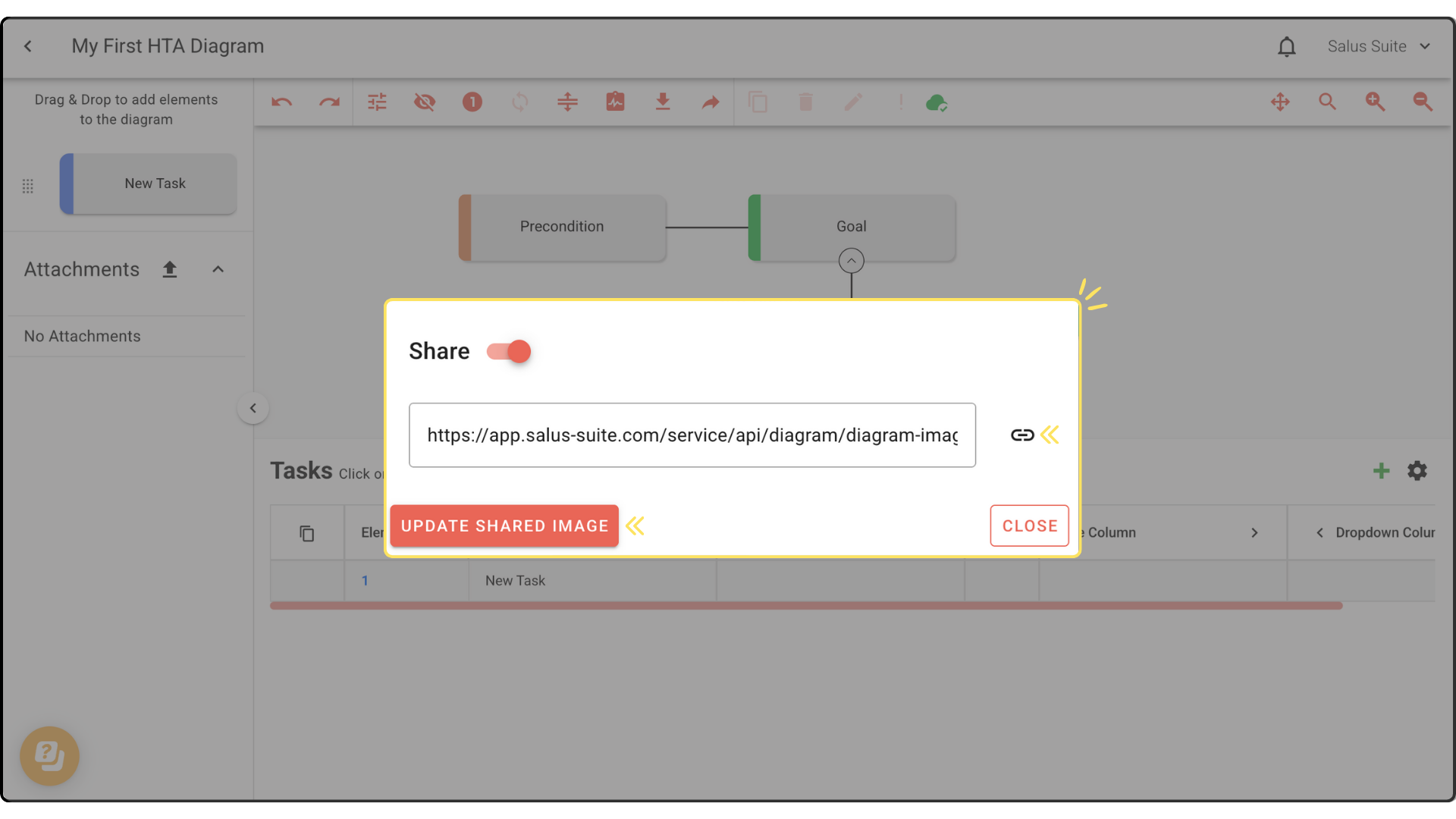
Step 4: Paste the link where you wish to share. Individuals should now be able to click the link to view the bowtie in a read-only format.
NOTE: Users within Safe Task can share the Live link with anyone; the recipient/s do not need to have a license to the software. If the diagram is part of a restricted project, only users from that project can initially share the link. When changes are made to the diagram, ensure to press the UPDATE SHARED IMAGE; this will refresh the image link so users are seeing the latest version of the diagram.
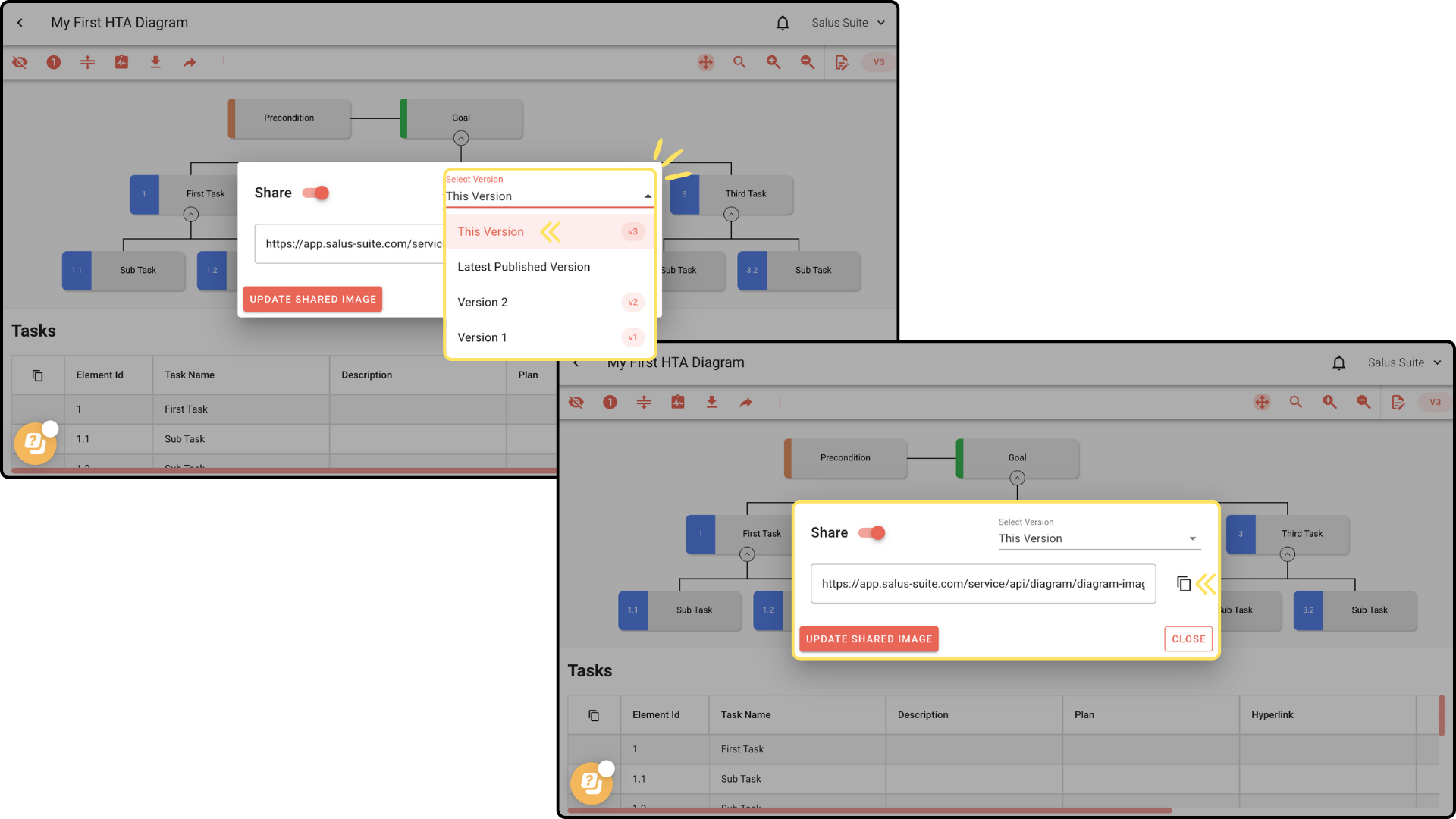
If your diagram has multiple versions, you can choose to share either 1) the current version you are in 2) the latest published version or 3) a different version.
- To share the current version you are in:
Step 1: Click on the Share button in the toolbar.
Step 2: Toggle the Share button on. 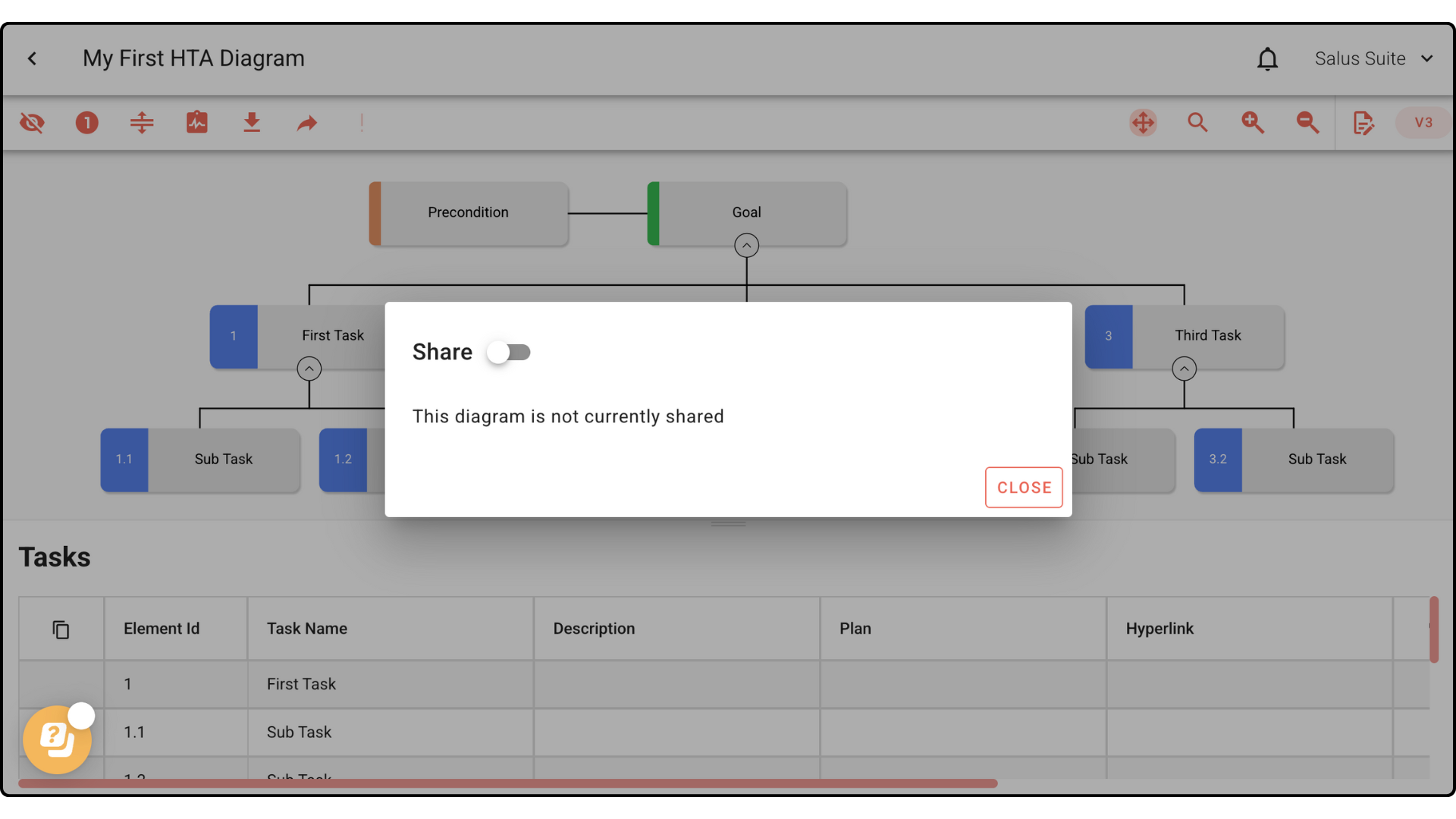
Step 3: In the Select Version dropdown, choose ‘This Version’.
Step 4: Click the Copy icon. The diagram is now ready to share.
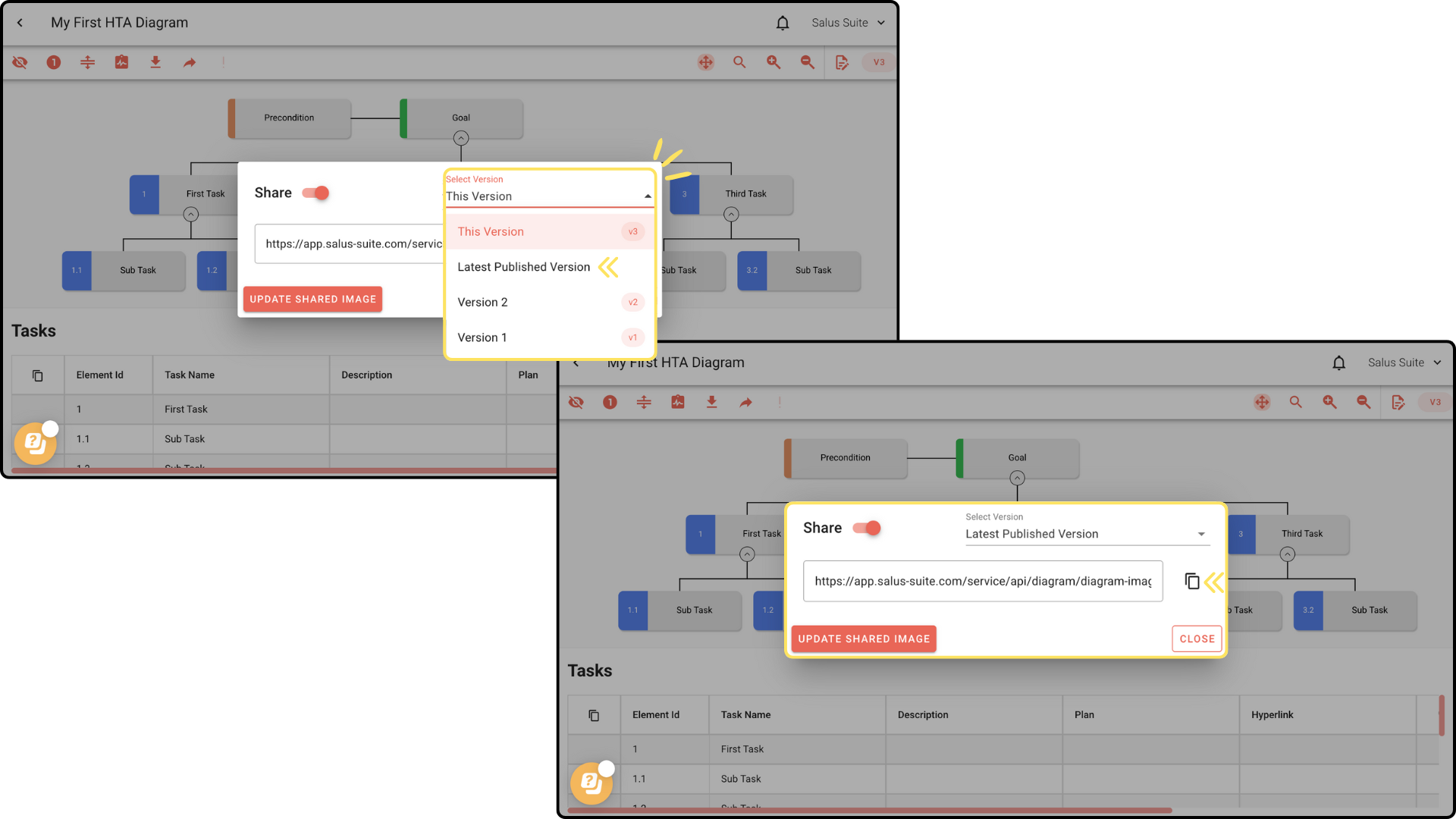
- To share the latest published version:
Step 1: Click on the Share button in the toolbar.
Step 2: Toggle the Share button on.
Step 3: In the Select Version dropdown, choose ‘Latest Published Version’.
Step 4: Click the Copy icon. The diagram is now ready to share.
- To share a different version:
Step 1: Click on the Share button in the toolbar.
Step 2: Toggle the Share button on.
Step 3: In the Select Version dropdown, choose the version you wish to share (in this example, we chose Version 1).
Step 4: Click the Copy icon. The diagram is now ready to share.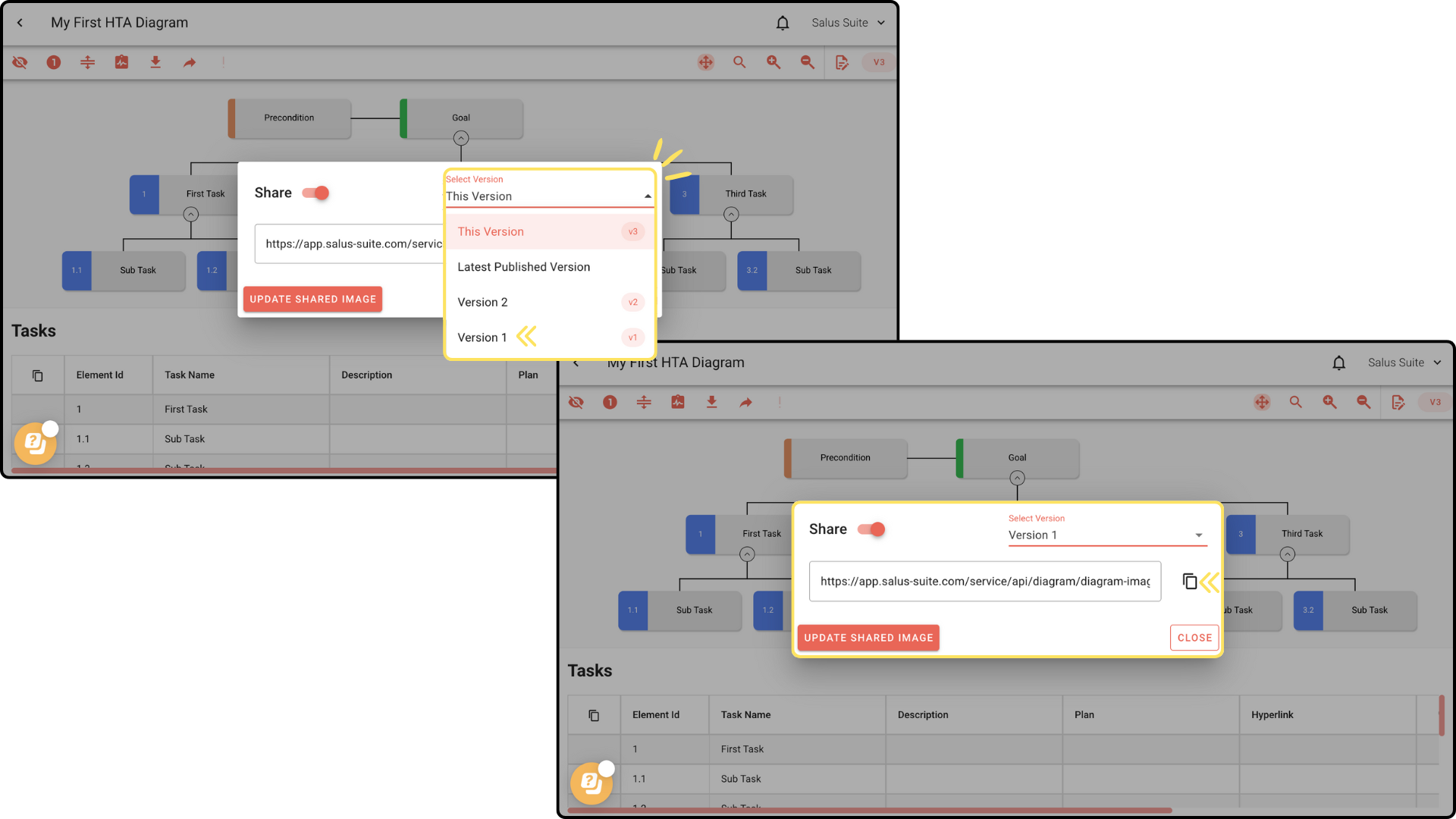
Invite users to collaborate
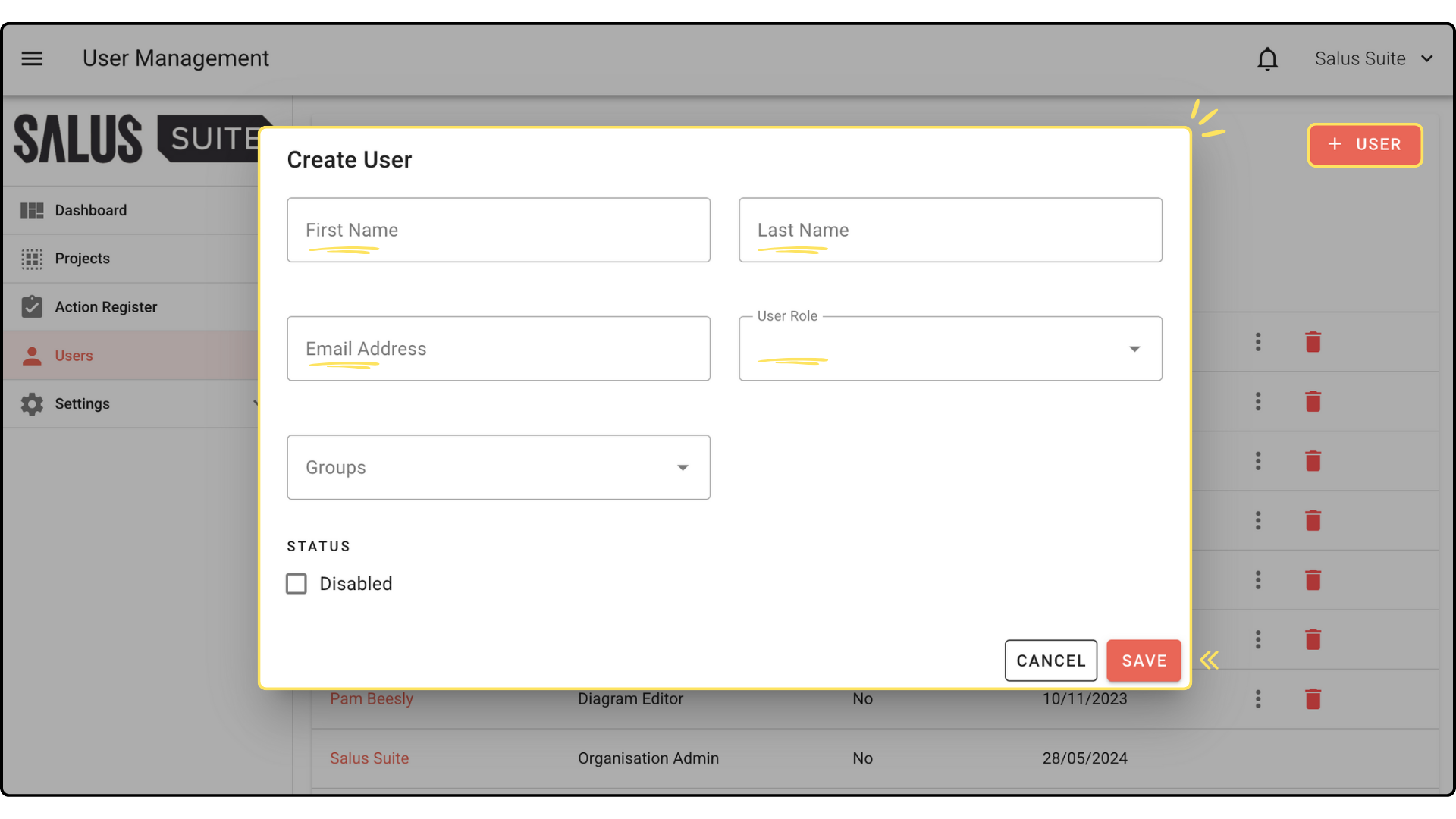
Step 1: In the User Menu, add new users by clicking on + User.
Step 2: Complete the required fields and choose the user’s role from the drop-down menu. Click Save.