
Developers

Build your first diagram
In this guide, we’ll show you how to create a new diagram, add, edit, delete, and clone elements, and add attachments.
Step 1: Head to the Project Menu and click + PROJECT. Enter a name for your project, then click SAVE. 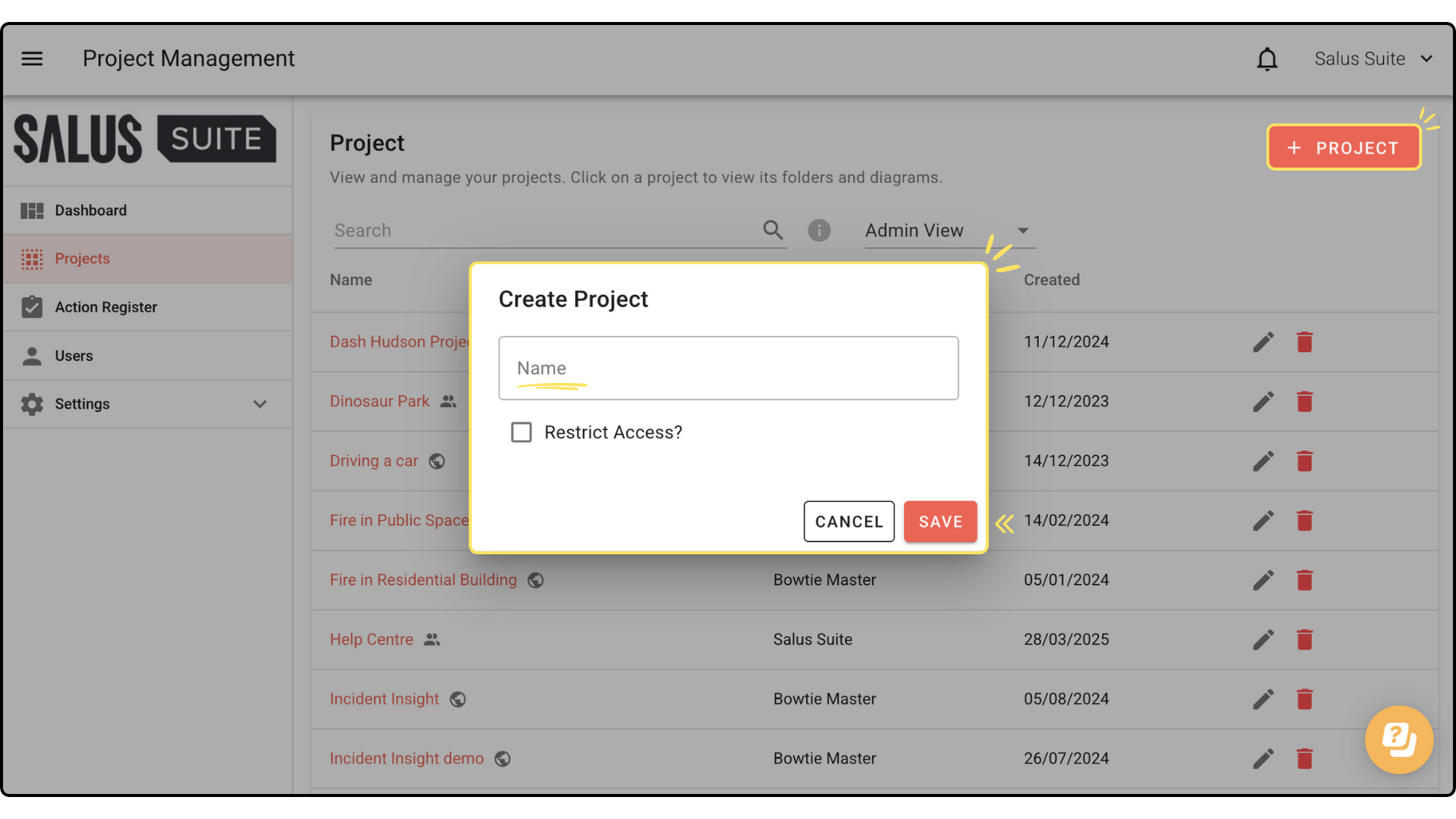
Step 2: In the newly created project, click + DIAGRAM. Enter a diagram name, select Safe Task in the Diagram Type, and choose a template if applicable. Click Create. 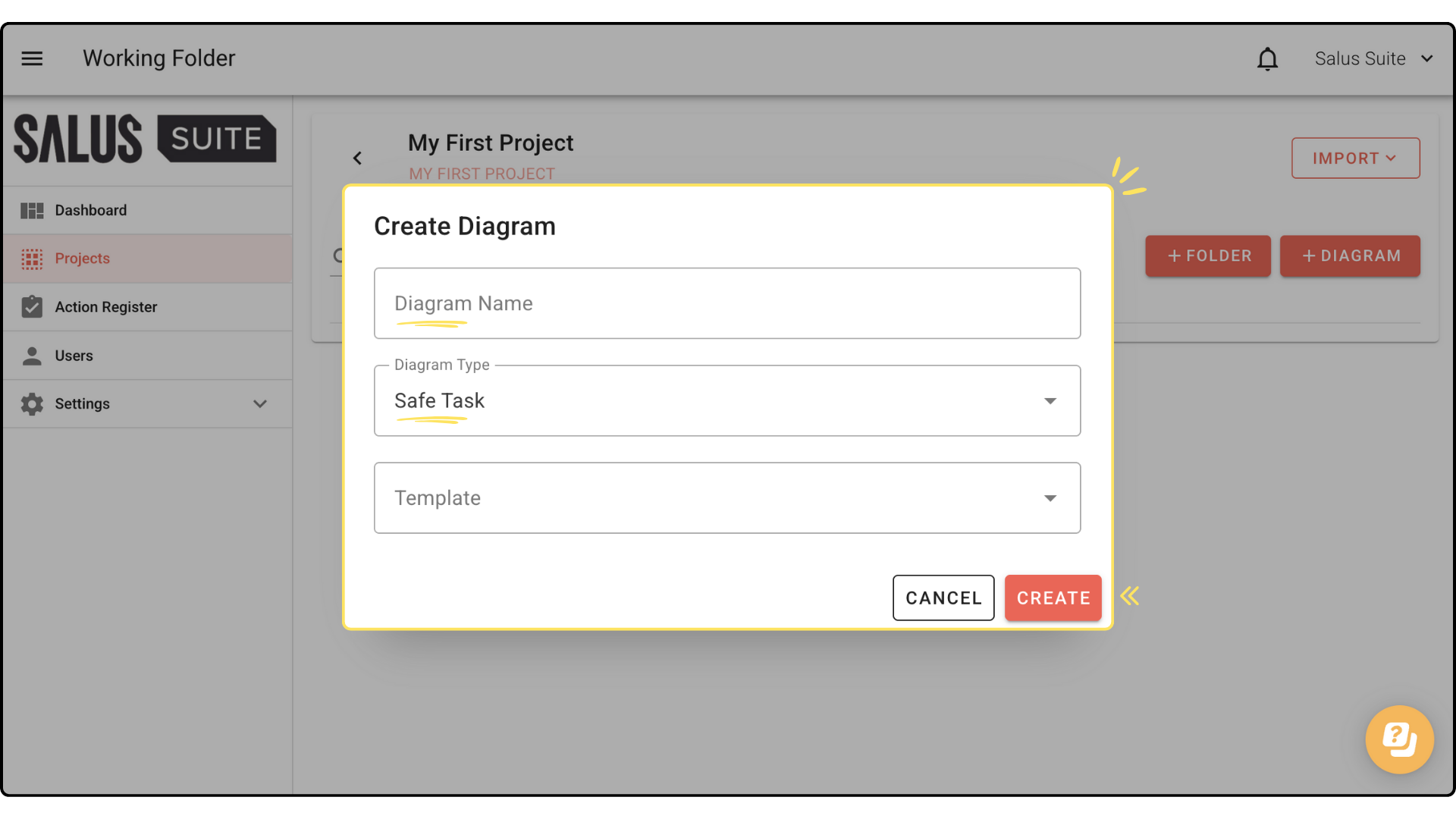
Add a new task
Step 1: Drag and drop elements from the left-hand side of the Diagram Editor into the diagram. Start by placing a New Task below the Goal. 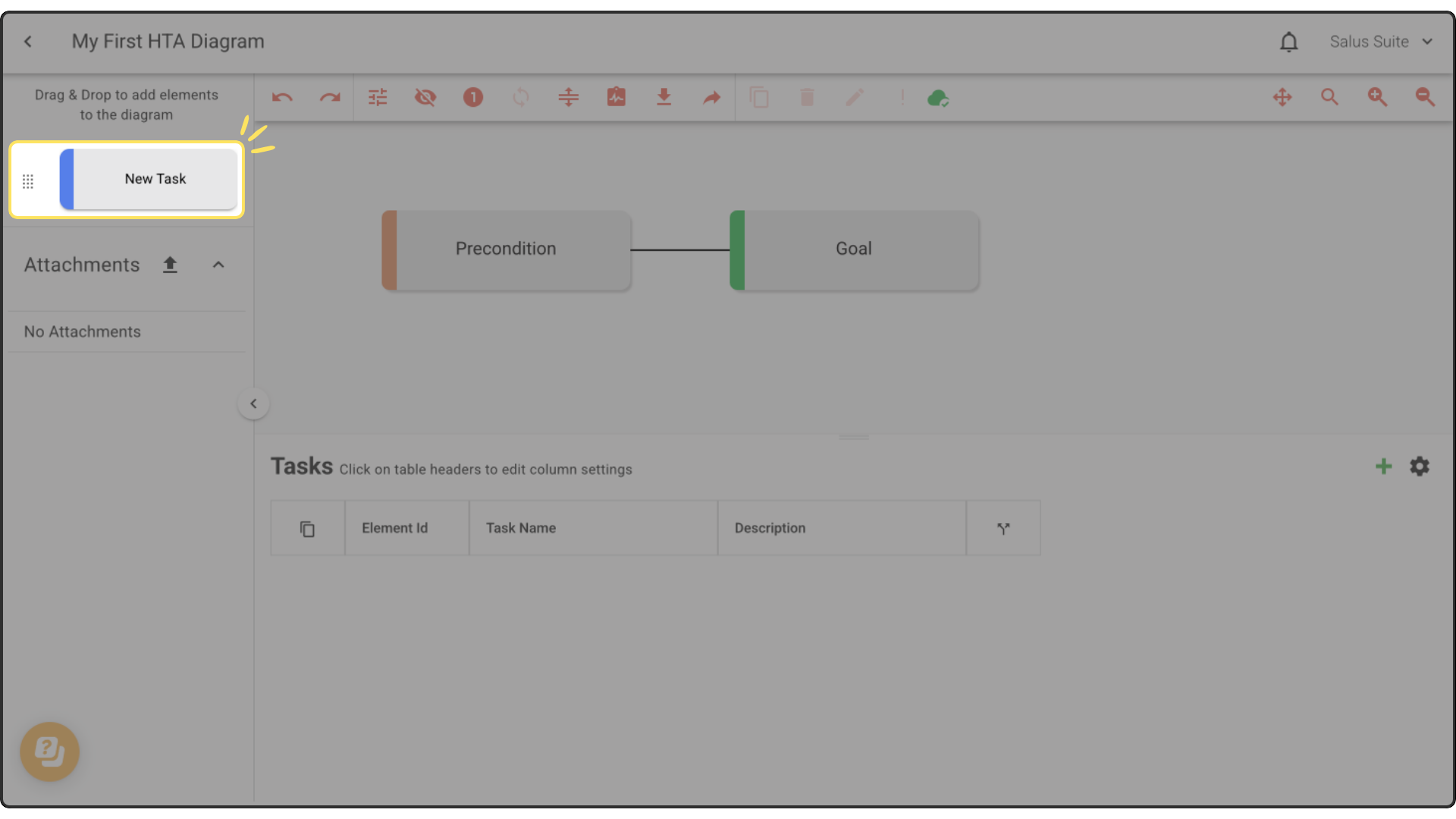
Safe Task Tip: Another quick way to add a new task is to press the Tab Key. Select the Goal or Task and Press Tab to add a child. 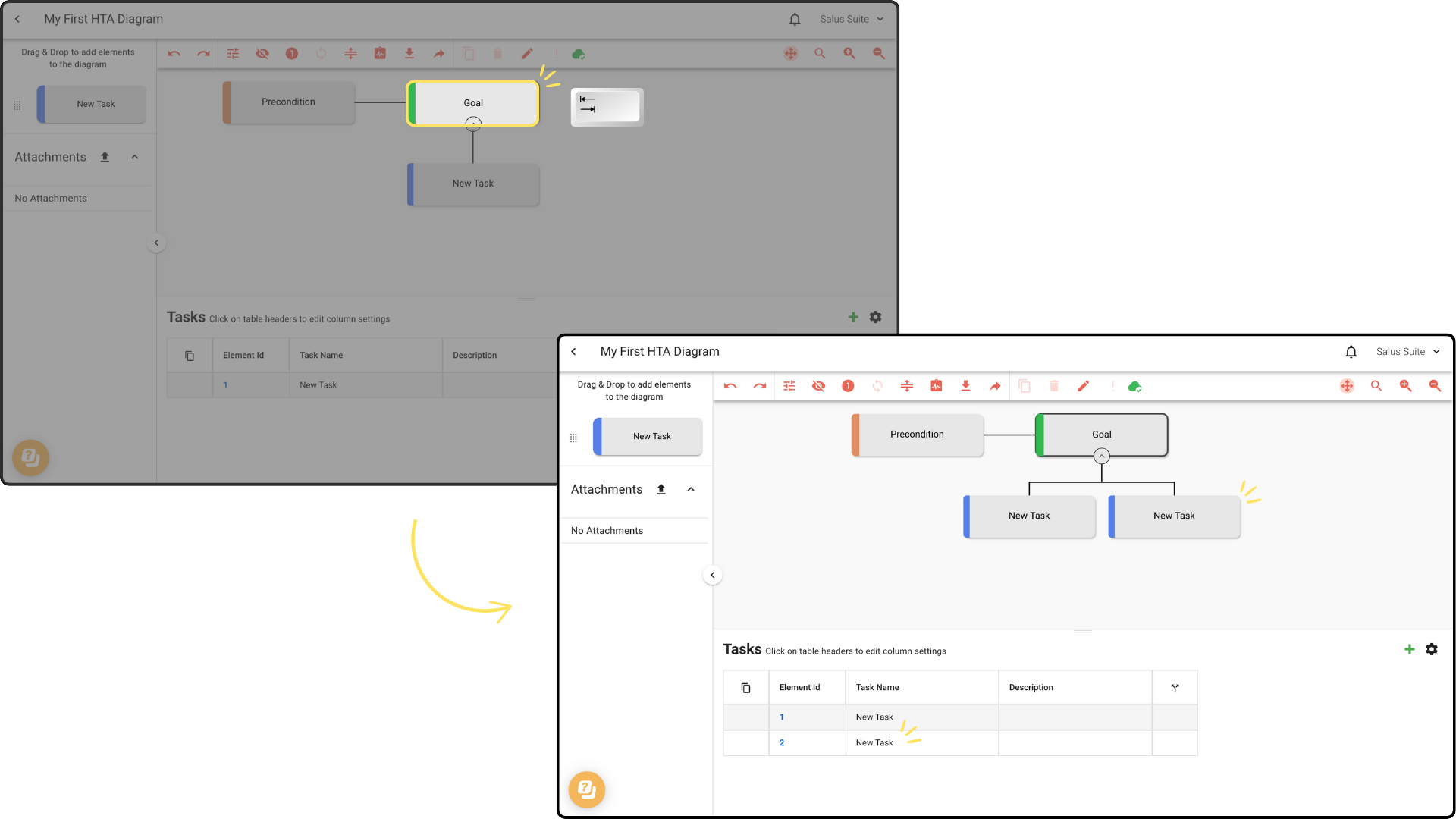
You can also add a new task through the Table. Click on a Task and press Tab to add a child. 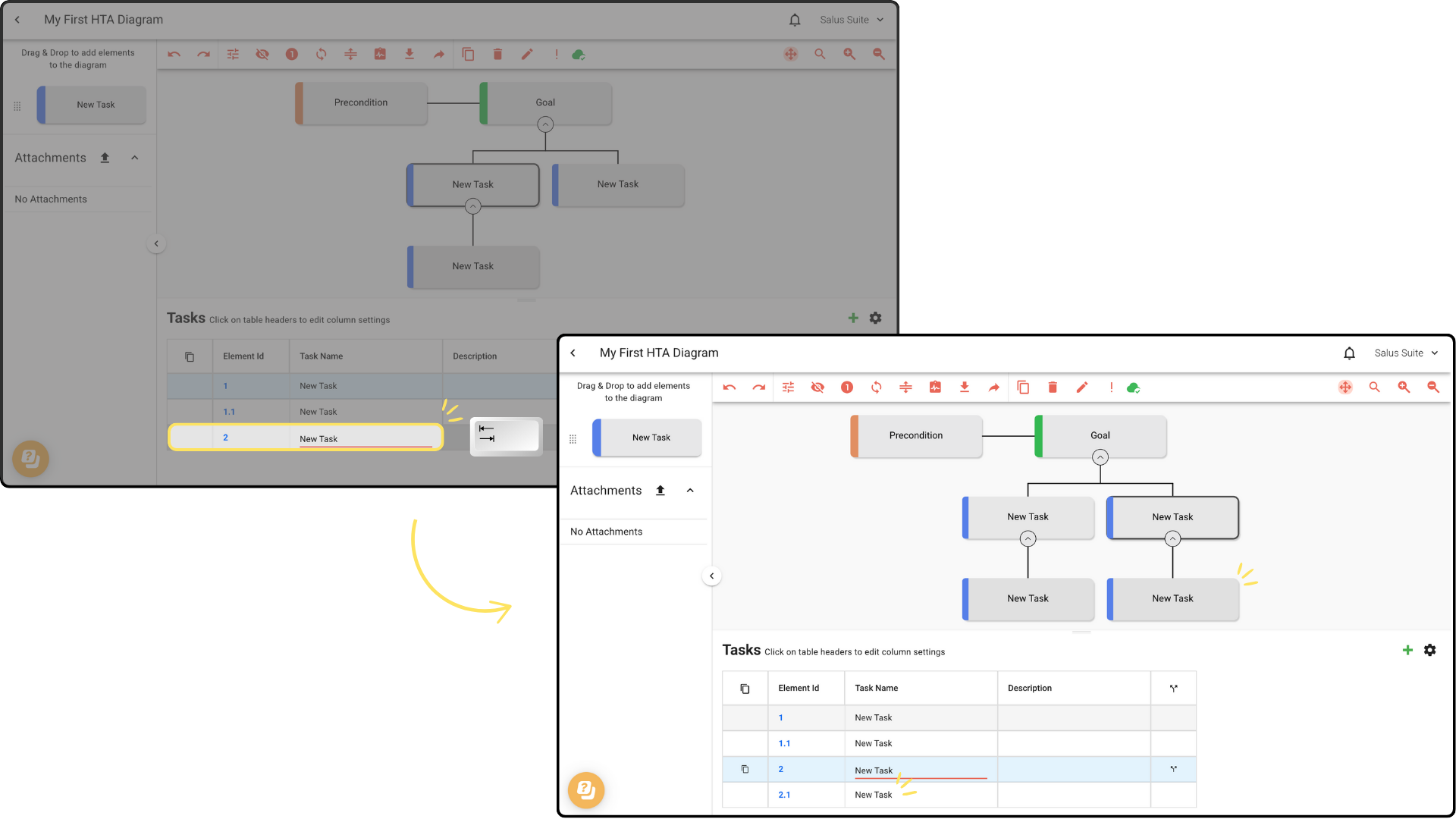
Step 2: To edit an element’s content, double-click on the element. You can rename the element here. For a more in-depth tutorial on editing a task, check our guide here. 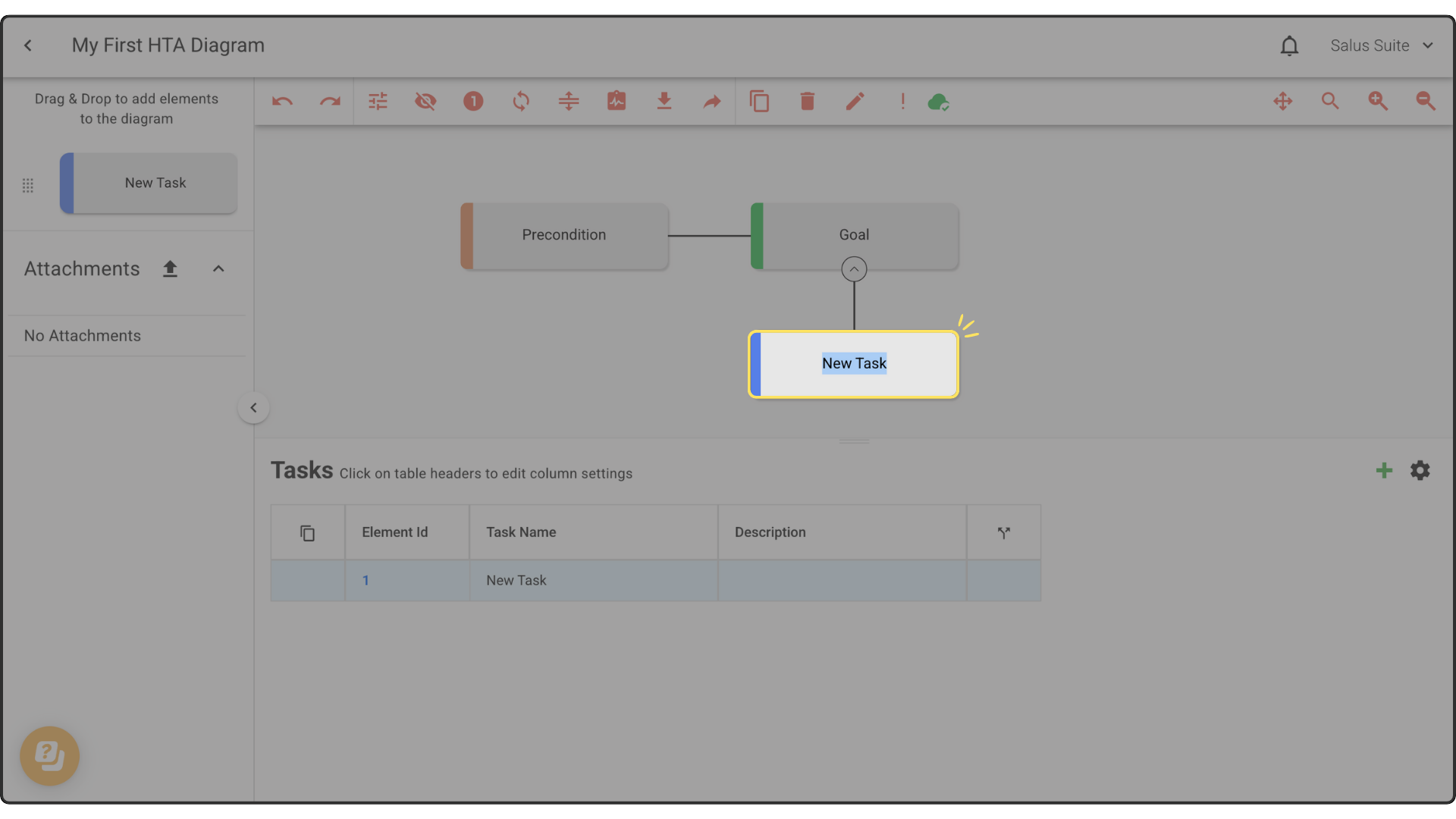
Delete an Element
Step 1: To delete an element, double-click on the element you wish to delete and then click on the Delete Element button found on the toolbar. 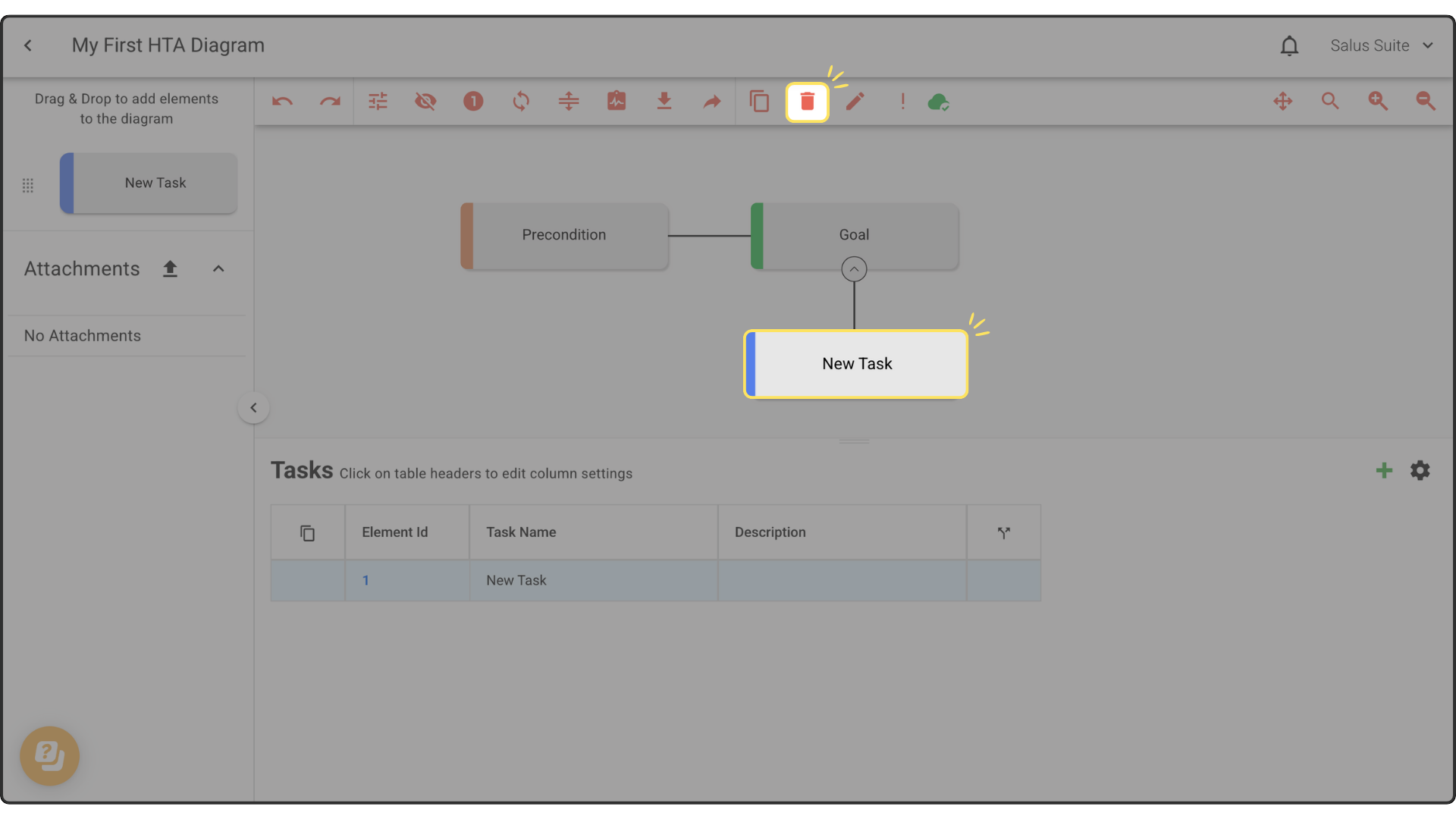
Step 2: To delete an entire node, double-click on an element of the node you wish to delete, and then click on the Delete Element button on the toolbar. This action cannot be undone once saved. This will permanently delete the selected element and its children. 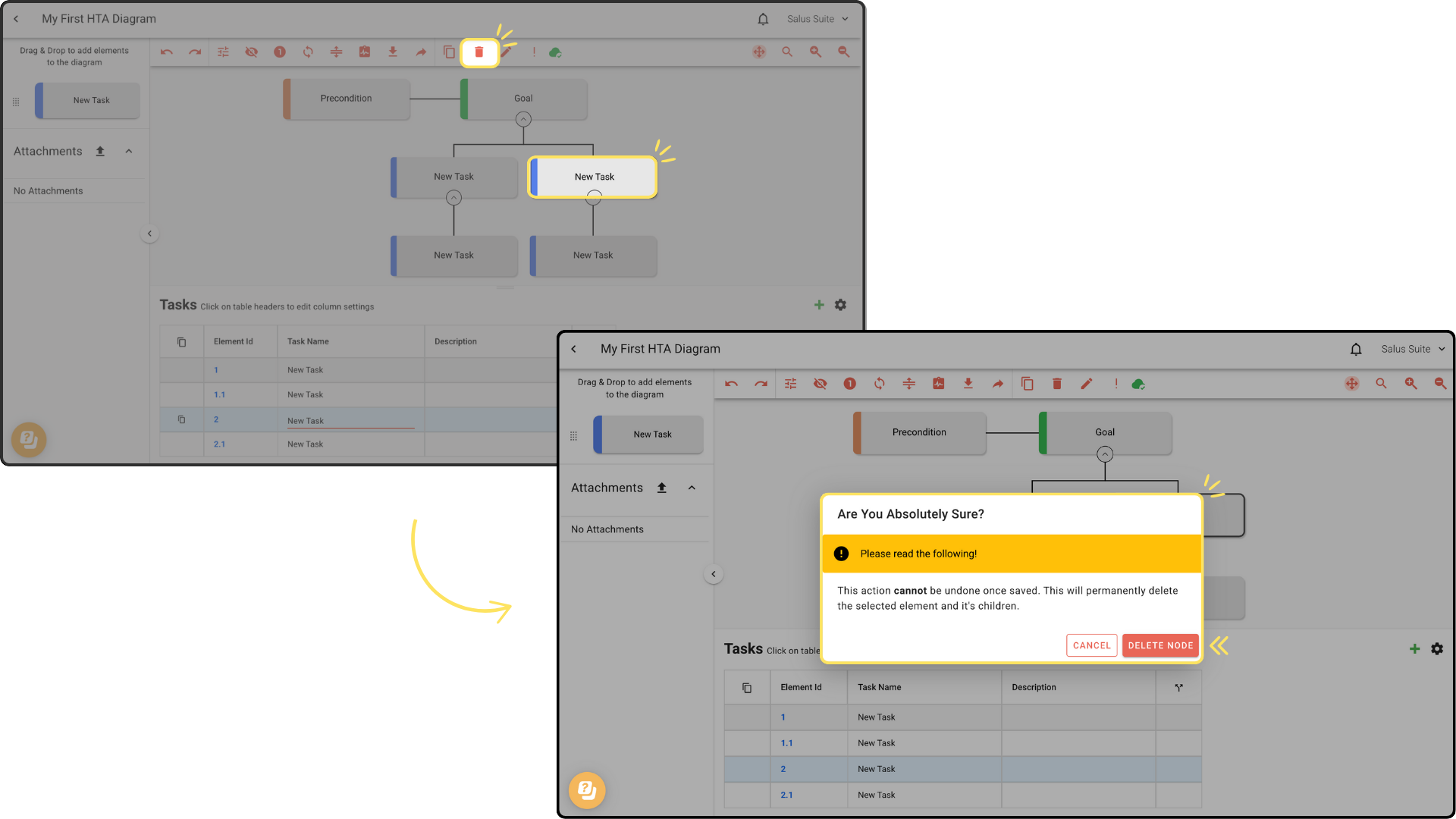
Clone an Element
Step 1: To clone an element, double-click on the element you wish to clone and then click on the Clone Element button on the toolbar. 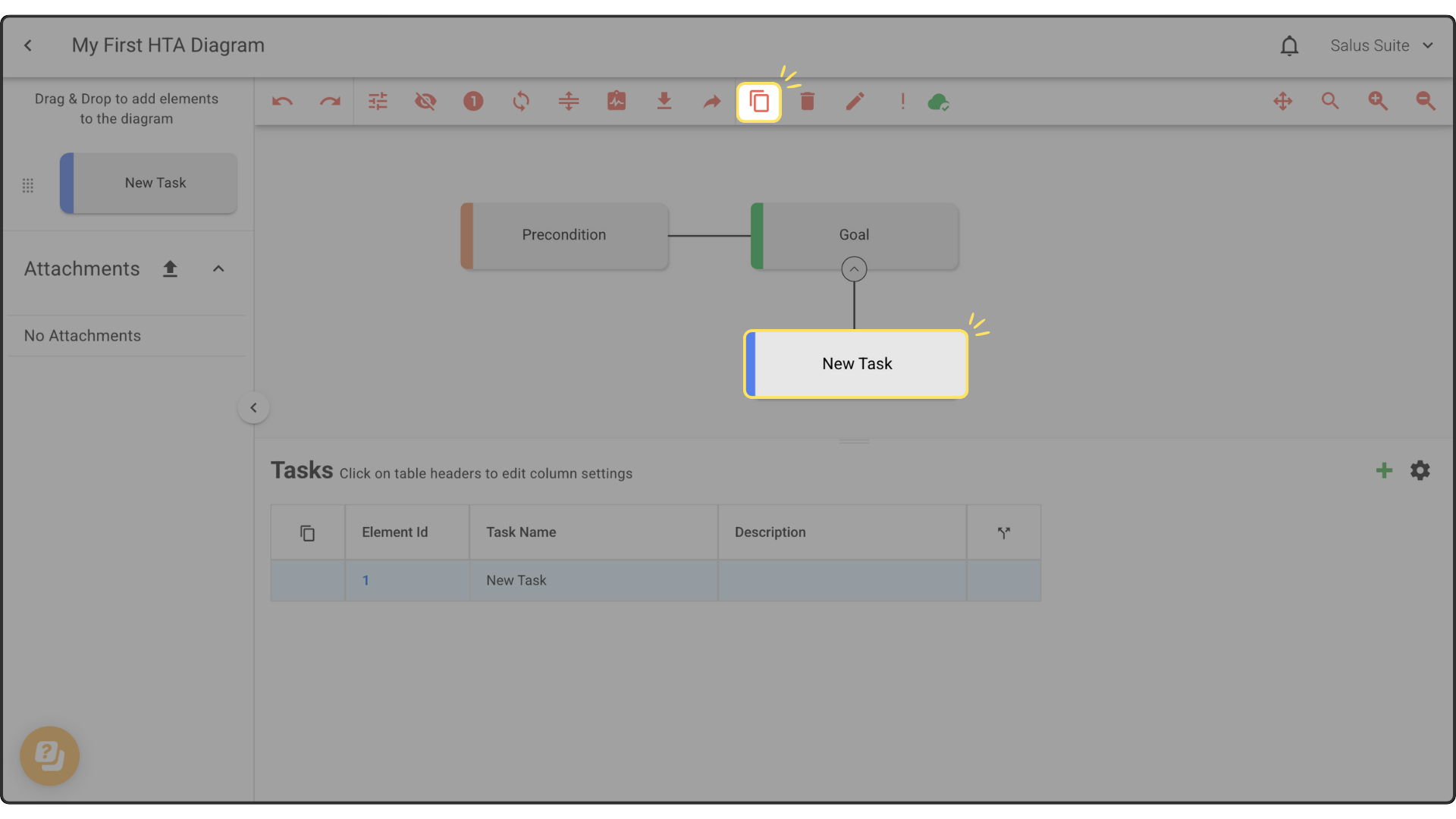
Add an attachment
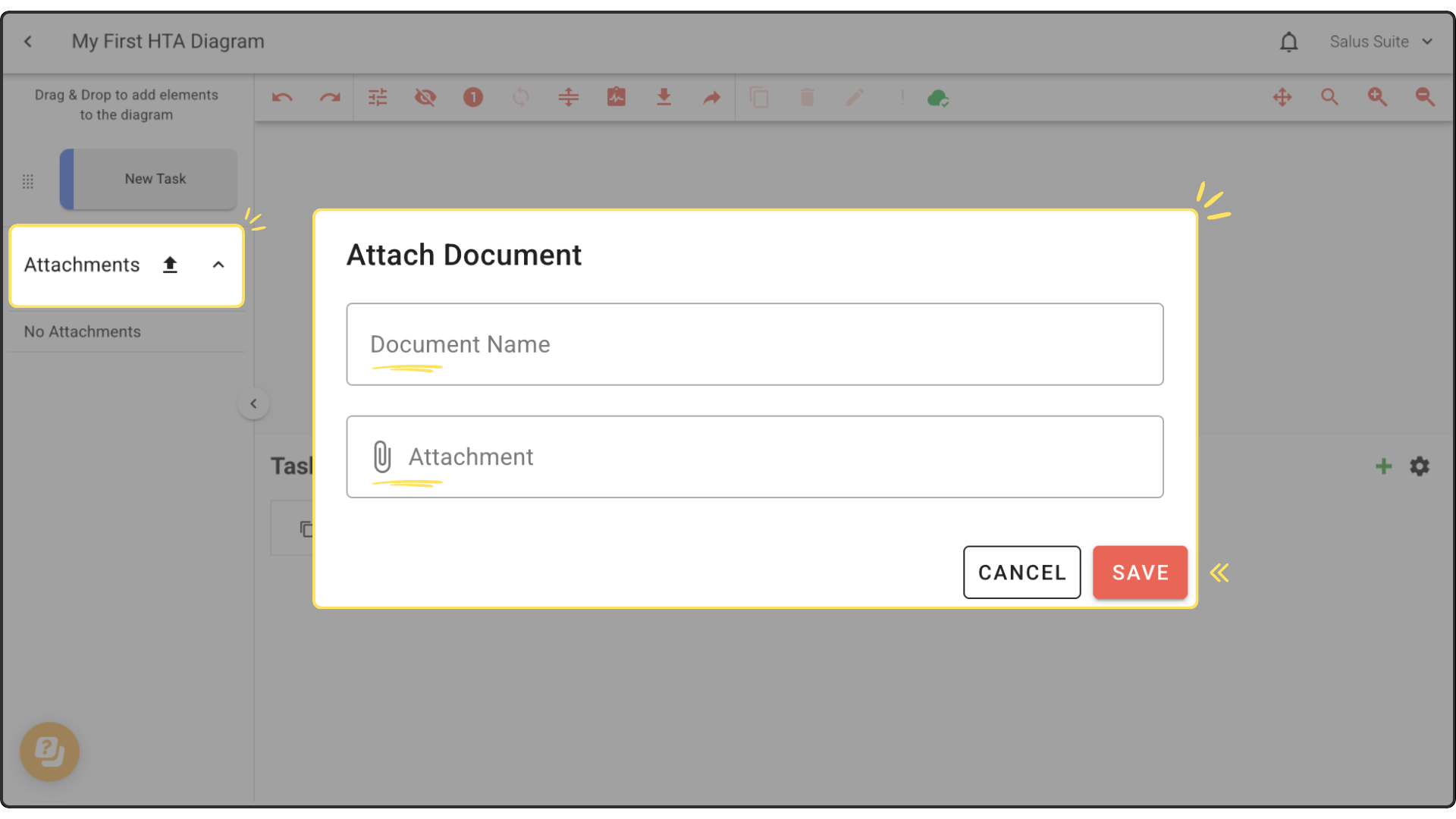
Step 1: To add an attachment, click the Upload icon.
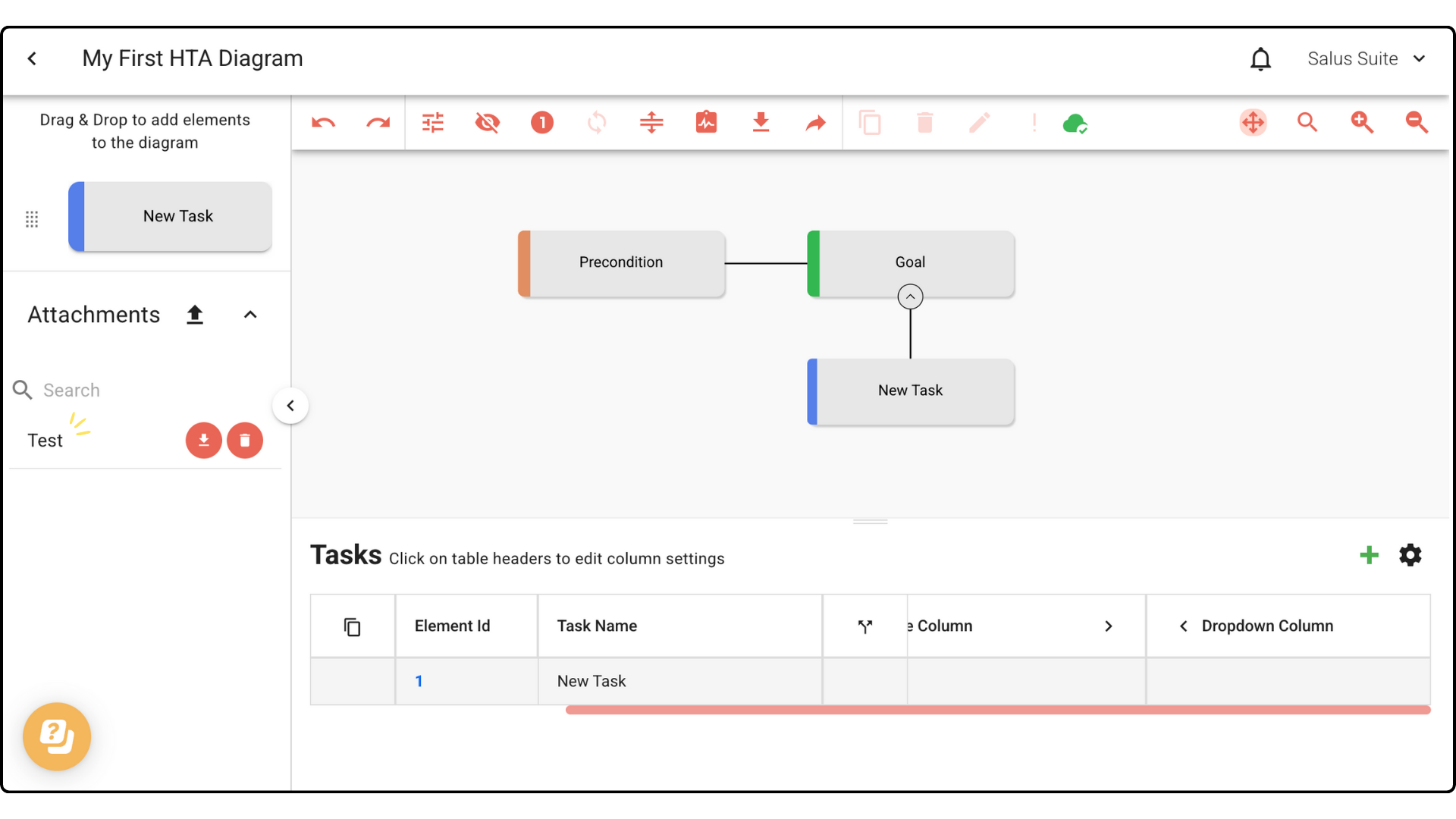
Step 2: Enter a Document Name, then click the Attachment to upload a file. Click Save. The attachment will appear in the left-hand menu.