
Developers
3

Edit a Task
In this guide, we’ll show you how to edit a task. You can edit a task in 2 ways:
- Through the Edit Task tool
- Through the Table
Edit Task tool
Step 1: Double-click an Element. Click on the Edit Task tool in the toolbar. 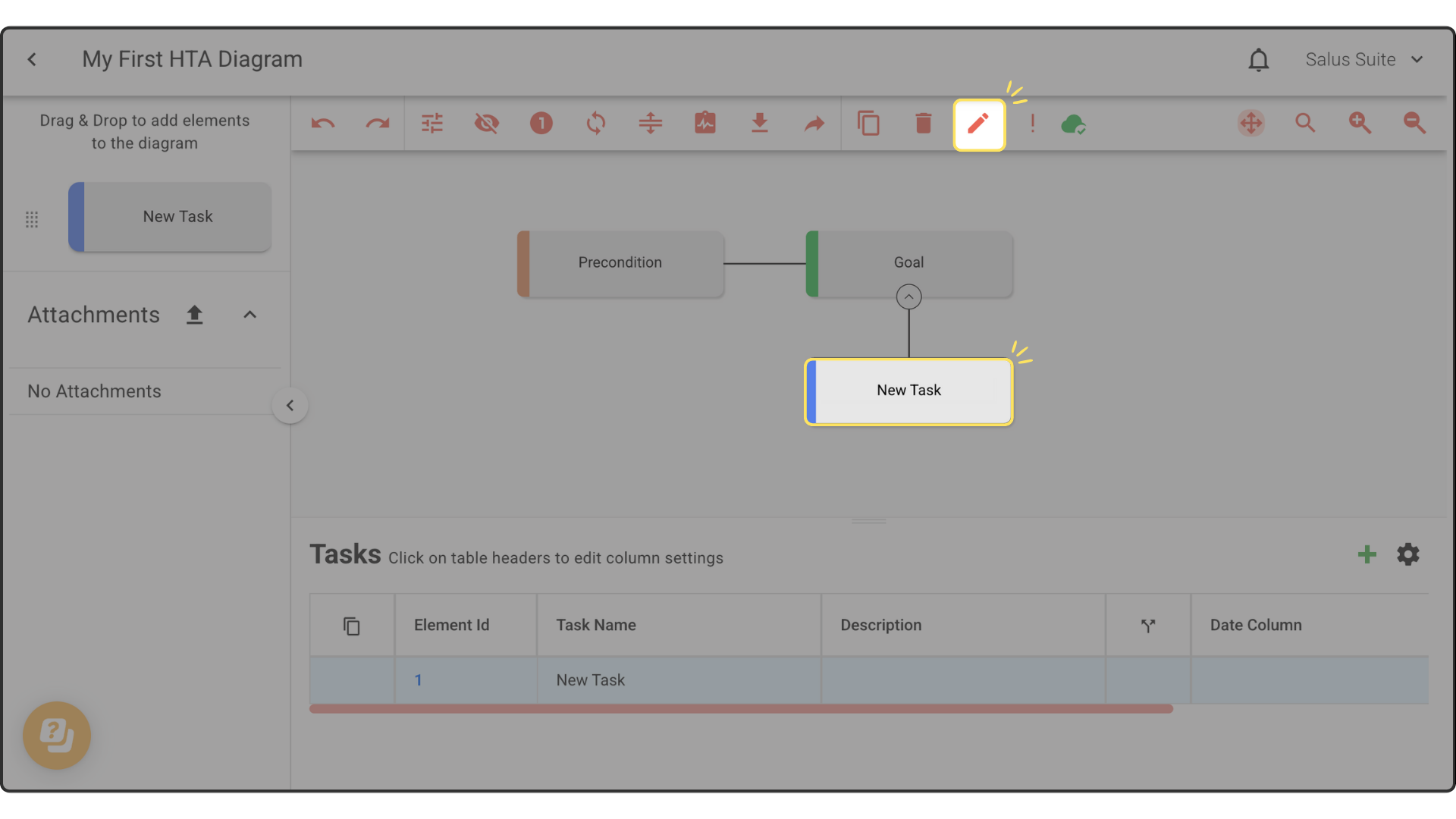
Step 2: In the Task Window, you can rename your task, add a description, and enter details of your column/s. Once done, click Save. Changes made will reflect in the diagram and table. 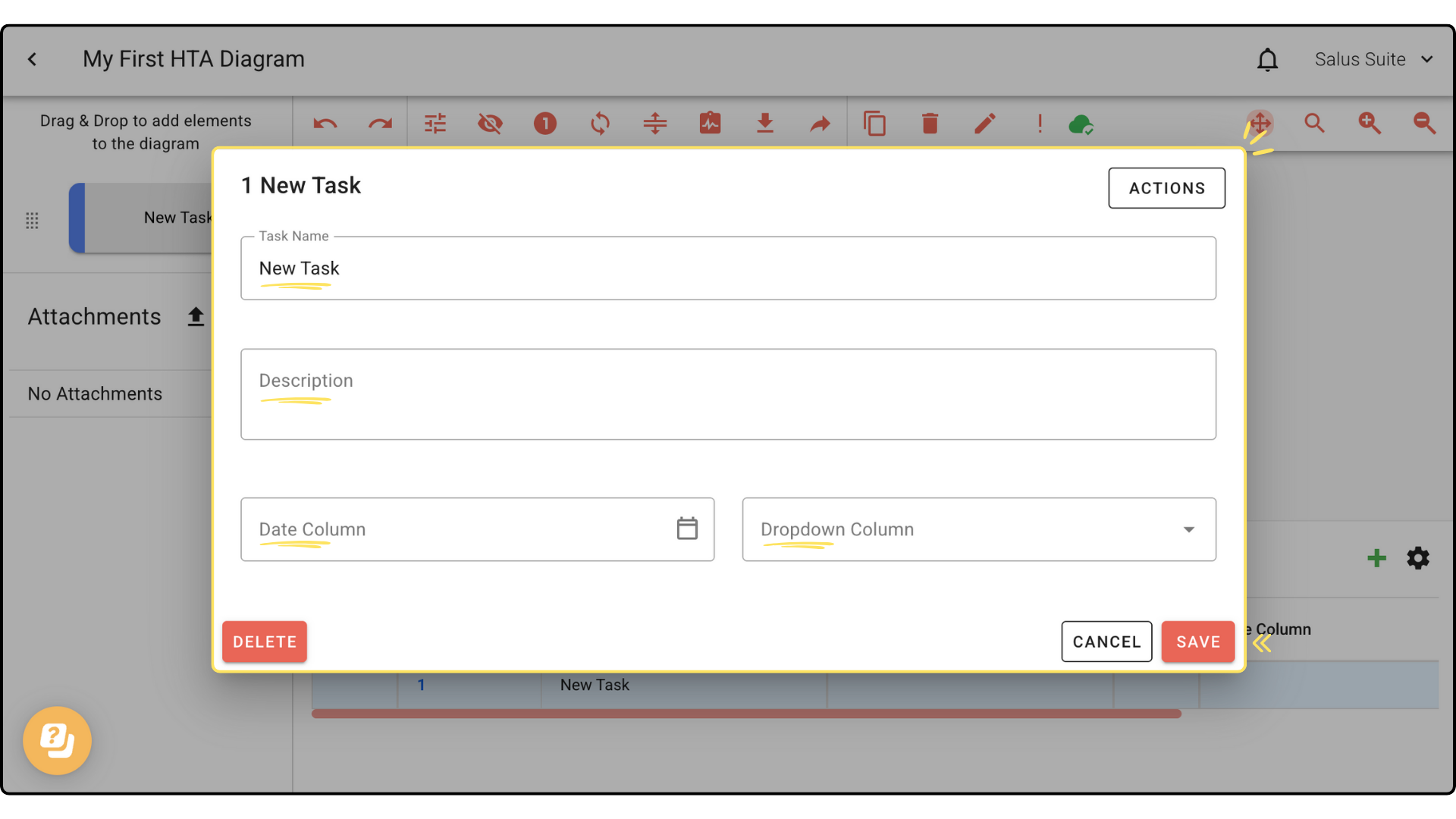
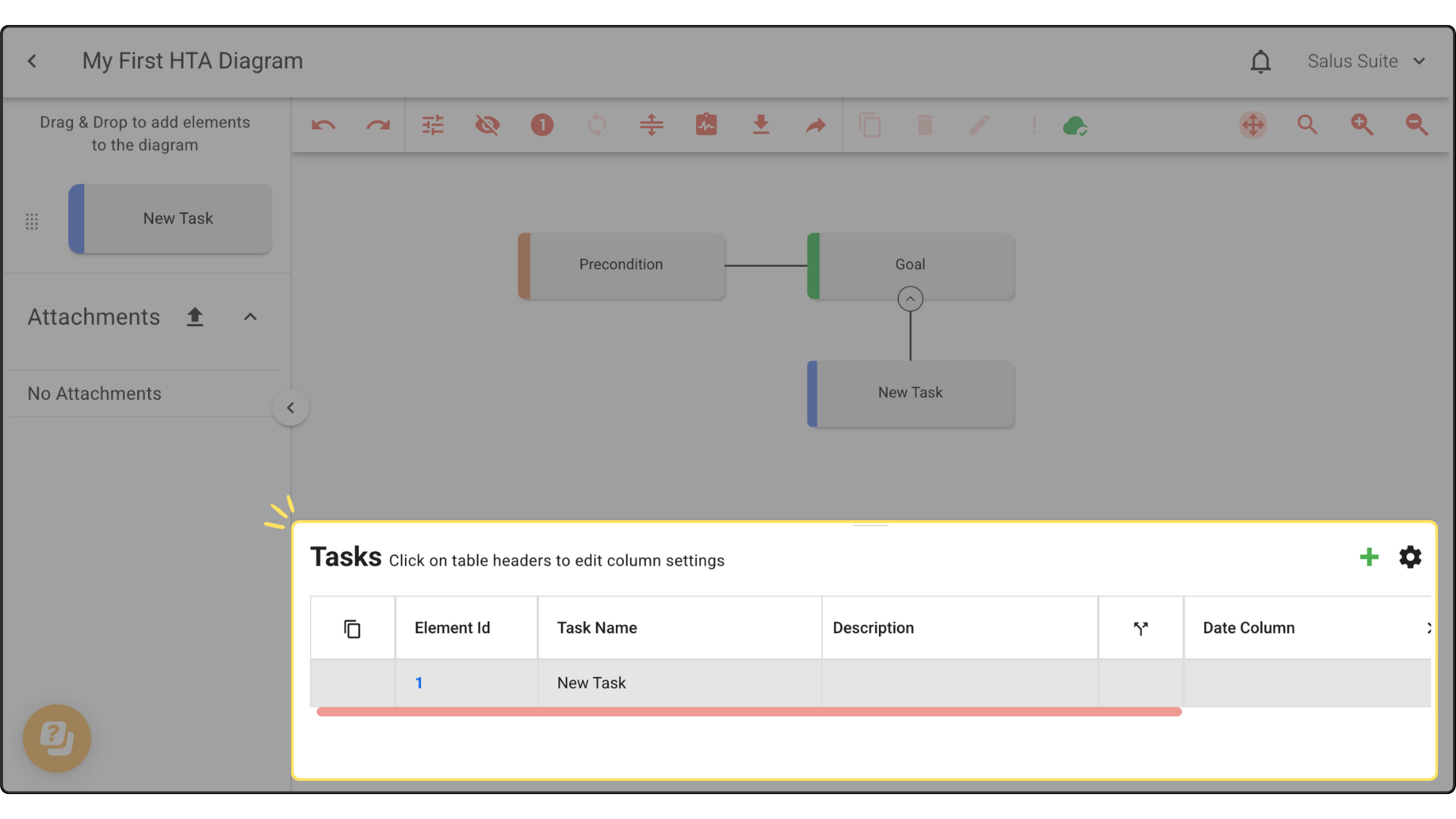
Edit Task through the table
To edit tasks through the table, simply navigate to the lower portion of the Diagram Editor. Scroll sideways to access columns.