

Developers

Export diagram as an Excel or Word Report
Safe Task provides users with the ability to easily export the details that make up your diagrams.
Export to Excel
Step 1: Click on Download & Export, then select Export to Excel. 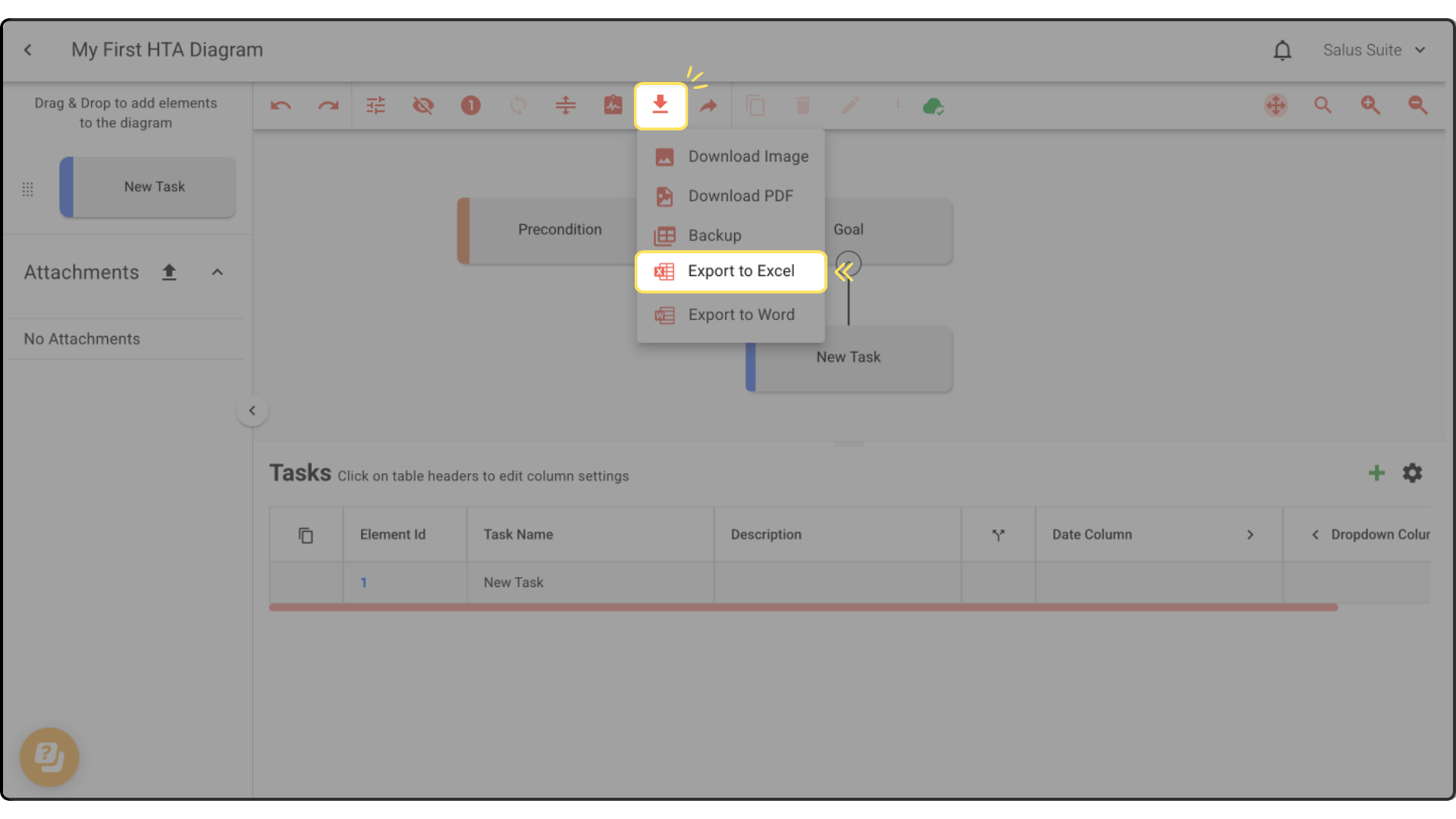
Step 2: Tick the boxes if you wish to add a diagram image and/or settings to export in separate tabs.
Step 3: Select columns you wish to export, or simply click Select All to export all columns.
Step 4: Click Export. The HTA diagram tasks and columns will download in a table format, with separate tabs for Actions, Settings, and Diagram Image. 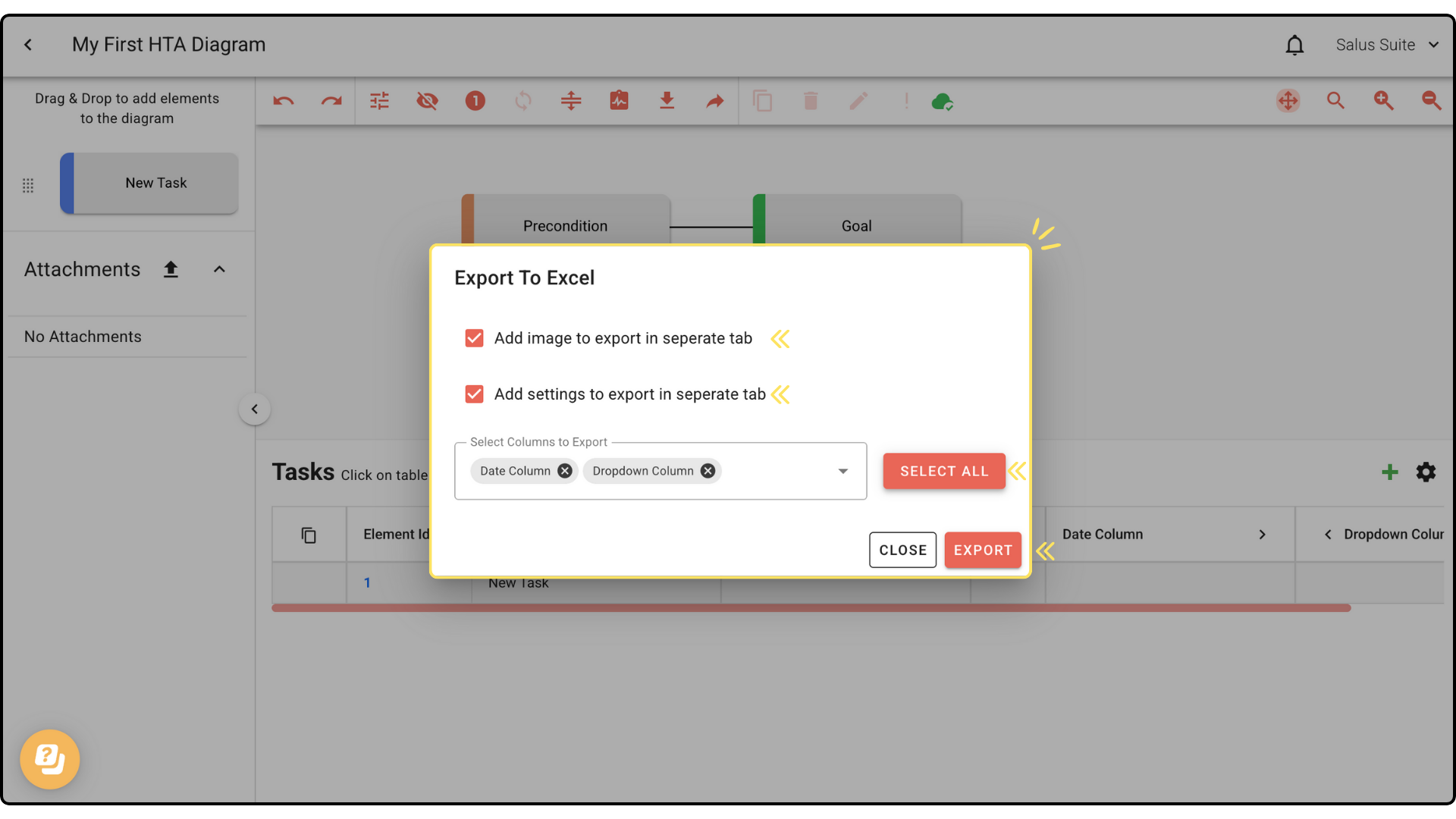
Export to Word
Step 1: Click on Download & Export, then select Export to Word. 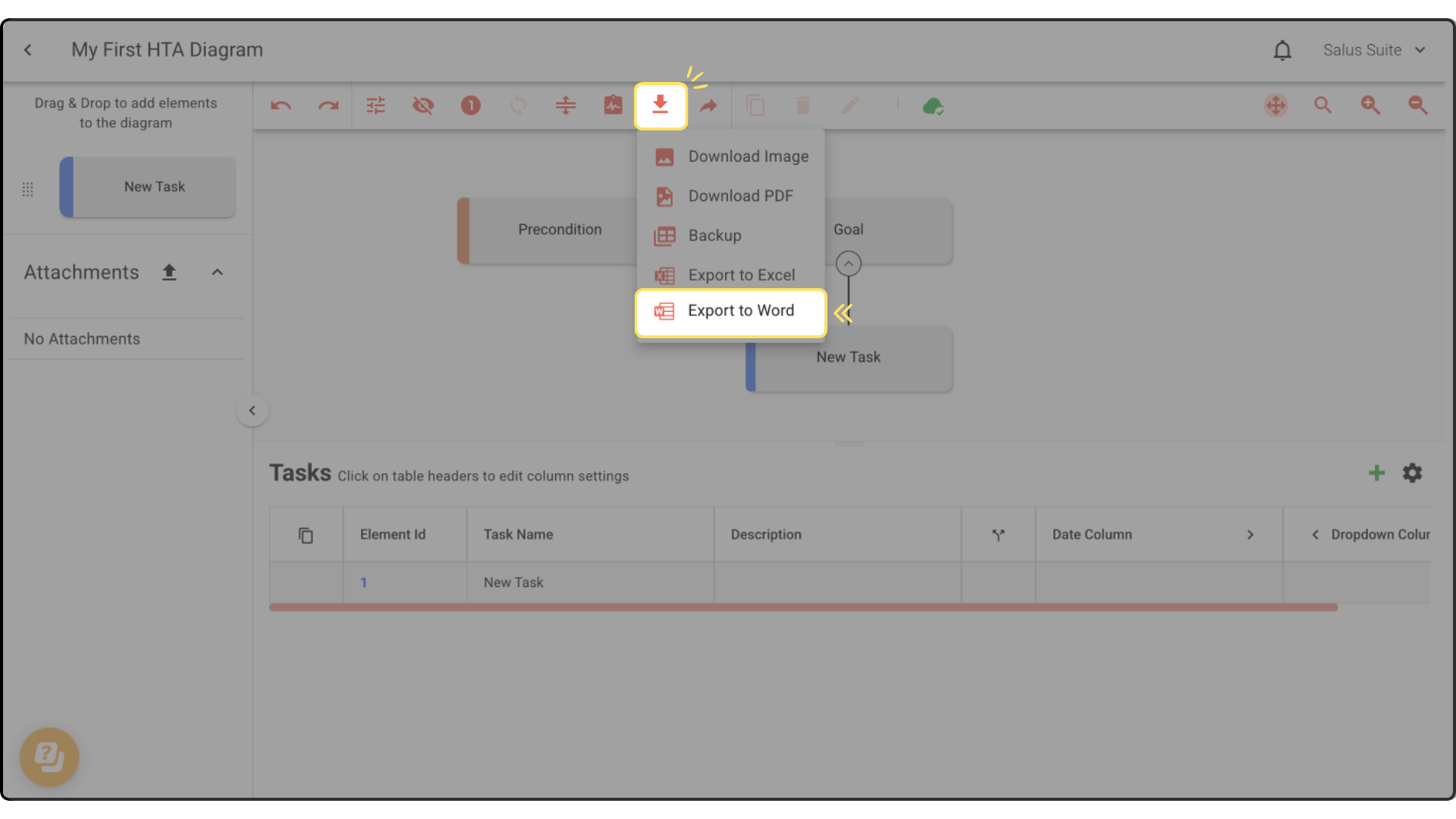
Step 2: Tick the boxes if you wish to add the company logo, add the diagram image, and add settings.
Step 3: Select the format of your document (portrait or landscape).
Step 4: Select the columns you wish to export, or simply click Select All.
Step 5: Click Export. 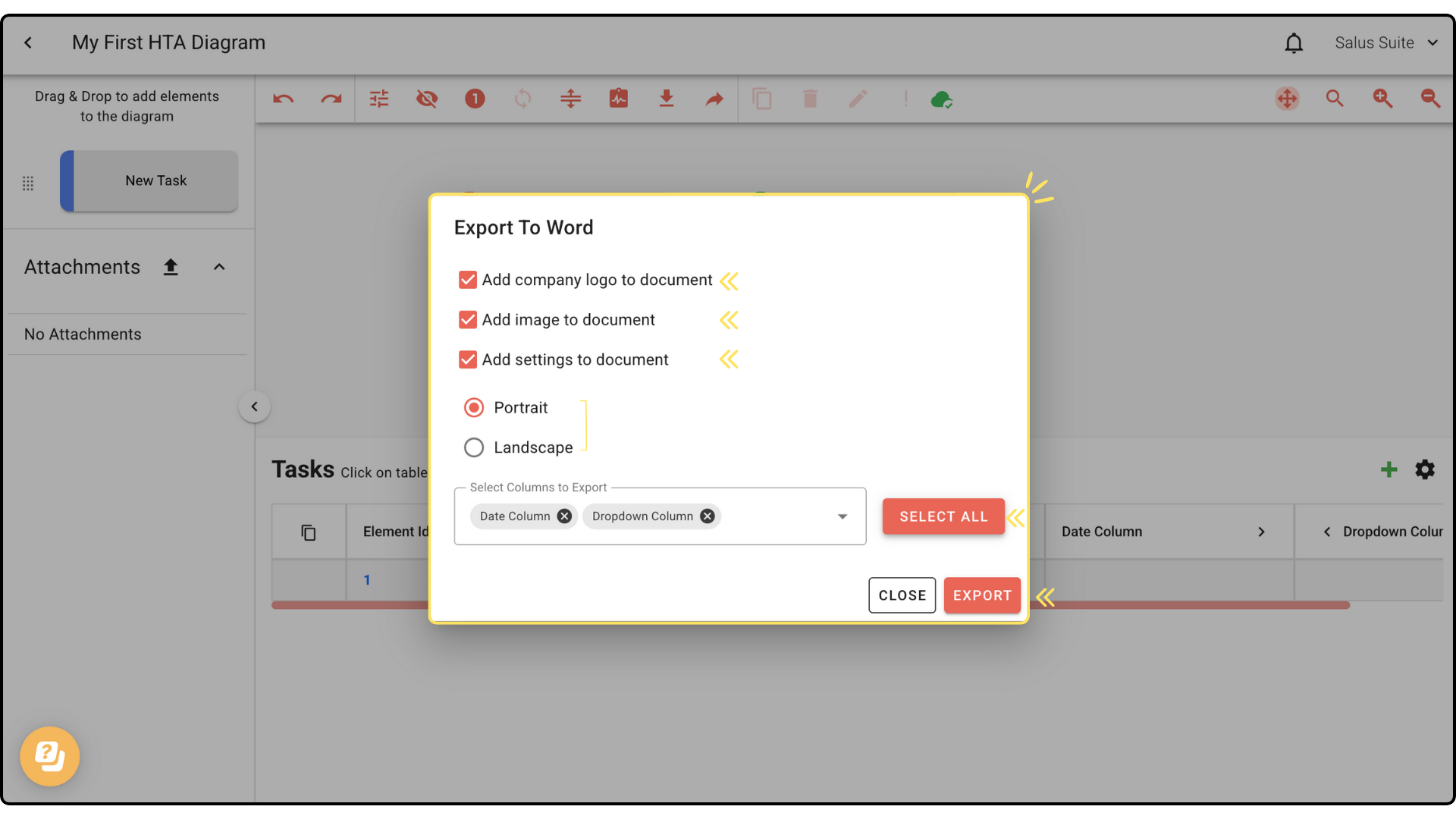
The HTA diagram will download as a Word file.


